最後更新: 2025 年 11 月,Koha 版本 24.11。

暫時關閉圖書館

隨著機構的發展,您可能需要暫時關閉某個圖書館。以下是在 Koha 中管理圖書館關閉事宜的非全部建議清單。

請點擊連結查看 Koha 文件其他章節中的更詳細說明。

Tip

  • 記下更改的設定,更改前的設定以及更改時間。

  • 圖書館重新開放後,恢復所有已更改的設定。

通知館員和讀者

請在館員介面和線上公共目錄 (OPAC) 中加入訊息,告知大家圖書館臨時閉館的資訊。您也可以在發送給讀者的通知中提及此事。

新增新聞館藏

通知圖書館館員:

  1. 前往工具 > 新聞

  2. 新增一個條目,顯示位置設定為 '館員介面'。

  3. 如果您知道圖書館何時重新開放,請新增過期日期,以便該訊息在不再需要時自動消失。

  4. 新增與圖書館館員相關的資訊。

  5. 結果: 新聞館藏顯示在館員介面主頁的左側。

Tip

如果您要與館員和讀者分享相同的訊息,請僅建立一個新聞條目,並將顯示位置設定為 '館員介面和 OPAC'。

告知讀者:

  1. 前往工具 > 新聞

  2. 新增一個條目其顯示位置設定為 'OPAC'。

  3. 如果您知道圖書館何時重新開放,請新增過期日期,以便該訊息在不再需要時自動消失。

  4. 新增與讀者相關的資訊。

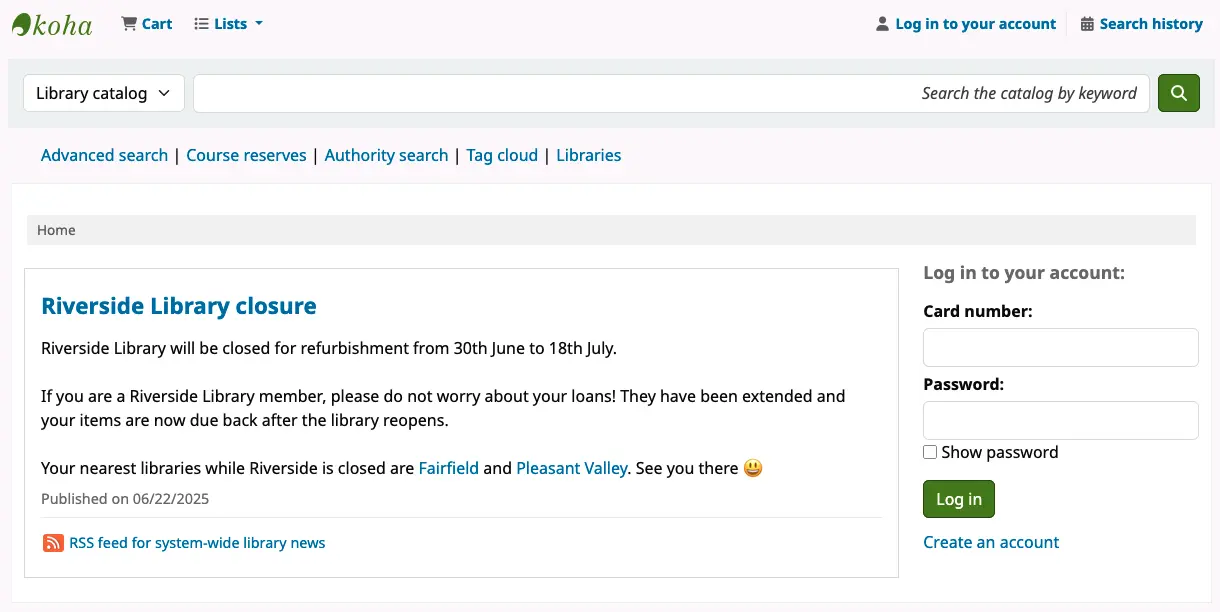
  5. 結果: 新聞館藏顯示在 OPAC 主頁的主要內容中。

    In the OPAC homepage main body is the message: 'Riverside Library will be closed for refurbishment from 30th June to 18th July. If you are a Riverside Library member, please do not worry about your loans! They have been extended and your items are now due back after the library reopens. Your nearest libraries while Riverside is closed are Fairfield and Pleasant Valley. See you there :smile:'

Note

對於 OPAC,您可以使用顯示位置設定為 'OpacMainUserBlock' 的 HTML 自訂標籤,而不是新聞條目。使用新聞條目的優點在於會顯示條目的發布日期,以便在需要更新時為讀者提供額外資訊。

更新圖書館詳情

如果您使用 OPAC 圖書館頁面,您可以為圖書館頁面新增資訊:

  1. 前往工具 > HTML 自訂設定

  2. 新增一個條目,用於關閉圖書館,顯示位置設定為 'OpacLibraryInfo'。

  3. 新增與讀者相關的資訊。

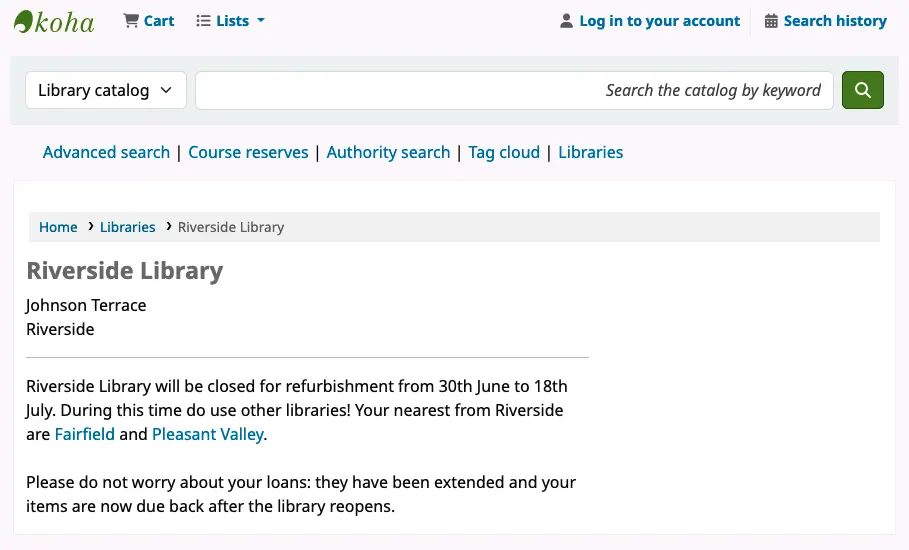
  4. 結果: 資訊顯示在圖書館頁面的聯絡方式下方。

    Riverside Library page on the OPAC. Underneath the address is the message: 'Riverside Library will be closed for refurbishment from 30th June to 18th July. During this time do use other libraries! Your nearest from Riverside are Fairfield and Pleasant Valley. Please do not worry about your loans: they have been extended and your items are now due back after the library reopens.'

更新通知

您可以新增有關閉館的訊息,以及讀者在圖書館關閉期間應該做什麼,並將其新增到電子郵件、列印和簡訊通知中。

查看是否有需要修改的通知:

  1. 前往工具 > 通知和便條

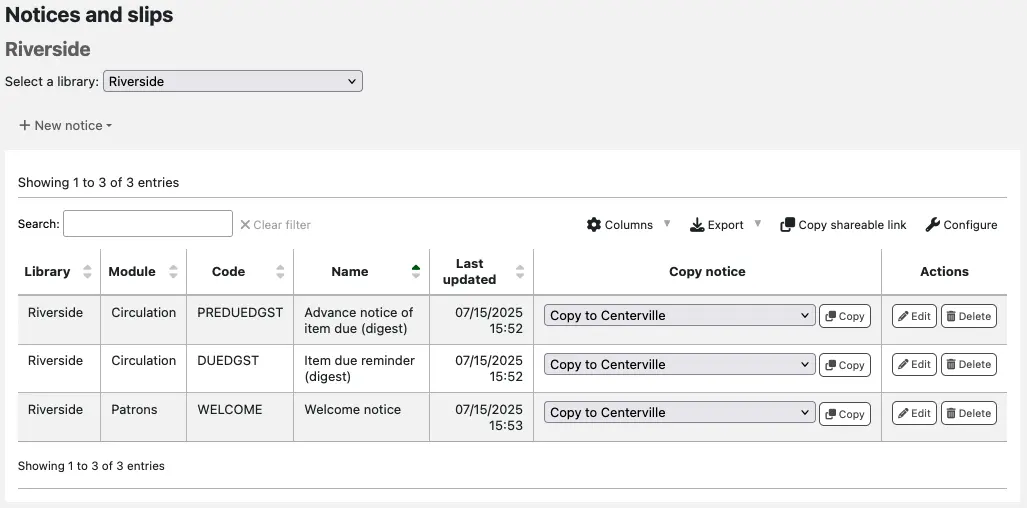
  2. 選擇圖書館,顯示讀者收到的圖書館關閉通知。

    On the Notices and slips page, the Select a library drop-down is set to Riverside. The table lists three notices which all have Riverside in the Library column.

    Note

    即使您有一些針對特定圖書館的通知,您也可能無法獲得發送給即將關閉圖書館的每一份通知的圖書館版本。因此,查看所有圖書館的通知仍然很有必要。

  3. 根據需要修改通知:

    1. 使用操作列中的 '編輯' 按鈕。

    2. 請開啟您用於傳送通知的各項方法,例如電子郵件、列印和簡訊。

    3. 修改後儲存。

  4. 如果您沒有針對特定圖書館的通知 (或您有但已完成修改),請將 '選擇圖書館' 切換回 '所有圖書館' 並查看這些通知

您可能需要修改的一些常見通知:

  • 自動續借: 自動續借通知

  • 自動_續借_DGST: 關於自動續借的通知

  • 到期: 館藏到期提醒

  • DUEDGST:館藏到期提醒 (摘要)

  • ODUE: 逾期通知

  • 提前通知: 館藏到期日的提前通知

  • PREDUEDGST: 到期館藏預告 (摘要)

  • 歡迎: 歡迎通知

Tip

若要查看讀者通常會收到哪些通知,請查看 逾期通知/狀態觸發器讀者類別設定 中的訊息偏好設定。請注意,其他通知取決於系統設定。

限制圖書館的使用

預約取件地點

取消圖書館作為預約取件地點的資格:

  1. 前往管理> 圖書館

  2. 編輯圖書館。

  3. 將取件地點設定為 '否'。

隱藏 OPAC 中的館藏

如果閉館圖書館中的資料無法獲取,請考慮將其隱藏在公共目錄檢索系統 (OPAC) 中:

  1. 前往管理 > 系統偏好

  2. 編輯 OpacHiddenItems 系統偏好。

  3. Add an entry for the home library that is closing, for example: homebranch: [RPL], where RPL is the library code defined in the library settings.

Make items non-holdable

If the items from this library are not available, consider making them non-holdable. This will prevent:

  • patrons from placing holds on the closing library's items

  • staff from placing holds on the closing library's items, unless they are allowed to override policies

  • the closing library's items being listed as available to fulfill holds in the holds queue and holds to pull reports

There are two ways to do this:

  1. If your CircControl system preference is set to 'the library the item is from', you can use the default policies:

    1. Go to Administration > Circulation and fine rules > Select a library > choose the closing library.

    2. Update the default holds policy and set the holds policy column to 'No holds allowed'.

      Note

      If your CircControl system preference is set to 'the library the patron is from' or 'the library you are logged in at', you can only use the not for loan status option described next.

  2. Use a not for loan status. Any items with the status cannot be checked out, unless staff can override. As long as the chosen status has a positive value, no holds can be placed on the item.

    1. Create a new not for loan status specifically for your closing library's items. Go to Administration > Authorized values > NOT_LOAN.

    2. Use the item search to find all the items from your closing library.

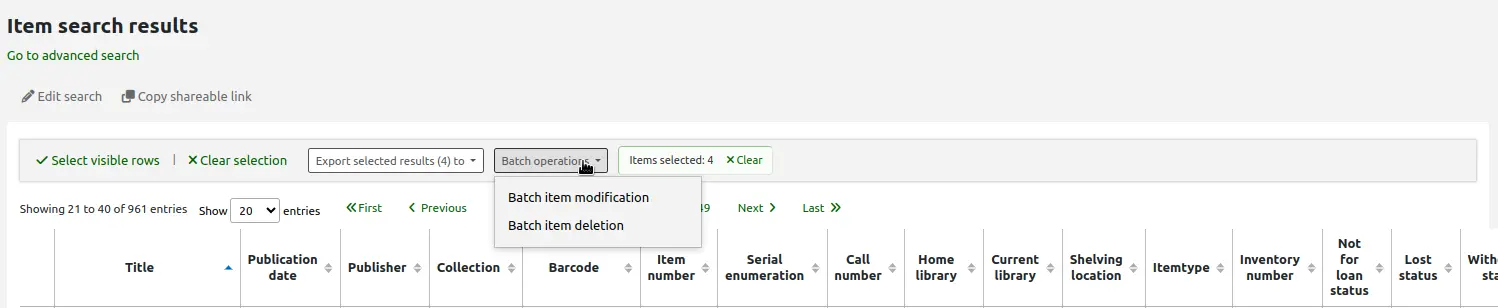
    3. Select the items from the search results and use the batch item modification tool to assign the relevant not for loan status to all the items.

      Top of the item search results page, the mouse cursor is on the 'Batch operations' button, the options are 'Batch item modification' and 'Batch item deletion'

Manage loans and overdue charges

Add closed dates for the library

Prevent new items borrowed, or renewed, from being due back during the period the library is closed:

  1. Go to Tools > Calendar.

  2. Select the affected library from the dropdown menu.

  3. Select the first date the library will be closed.

  4. Add a 'To date'.

  5. Select 'Holidays on a range'.

  6. Click 'Save'.

Extend loan due dates

To batch extend due dates, so that all existing loans are due back after the library reopens:

  1. Go to Tools > Batch extend due dates.

  2. Select the affected library.

  3. Enter the date parameters.

To manually set a longer loan period when issuing an item:

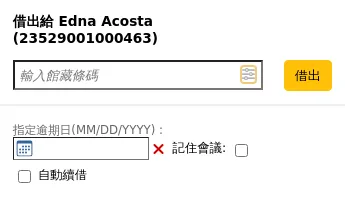
  1. Go to Circulation > Check out> enter the patron card number > open the checkout settings (the icon in the barcode field).

  2. Add a due date to 'Specify due date' and click 'Check out'.

    Checkout box with checkout settings section opened

To manually set a longer renewal period:

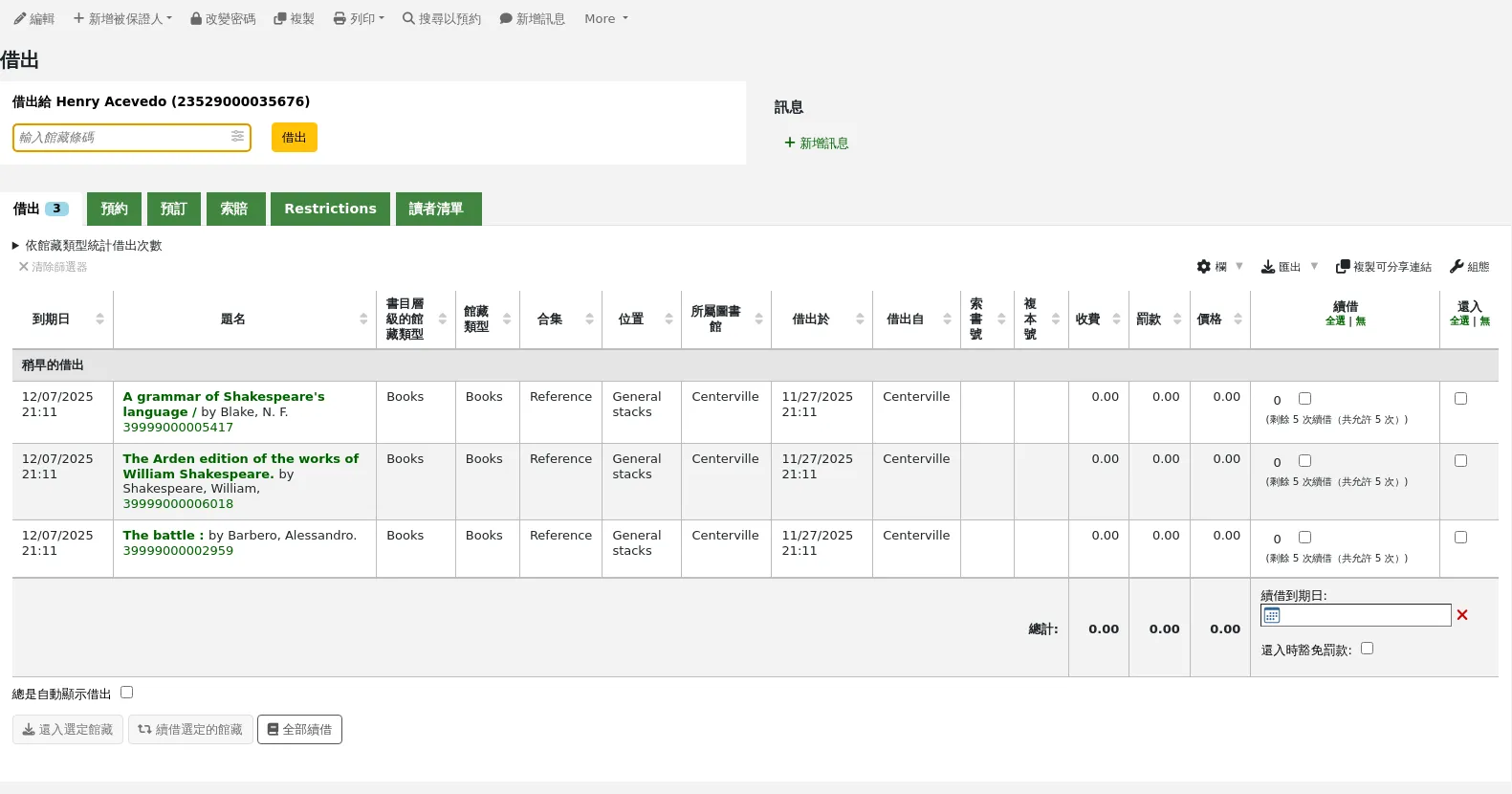
  1. Go to a patron's checkouts (Patrons > search for the patron > Checkouts tab).

  2. In the renew column, select the individual items or select all.

  3. Set a renewal due date.

  4. Click 'Renew selected items' or 'Renew all'.

    Issues table (circulation summary) in the patron file

Forgive overdue charges

If patrons have incurred overdue charges because of the temporary library closure, you can:

  1. Forgive overdue charges when a late item is returned by going to Circulation > Check in > Checkin settings > select 'Forgive overdue charges'.

    The check in page of the circulation module. The field to scan the barcode is visible, as well as the checkin settings underneath: specify return date, remember return date for next check in, and book drop mode.

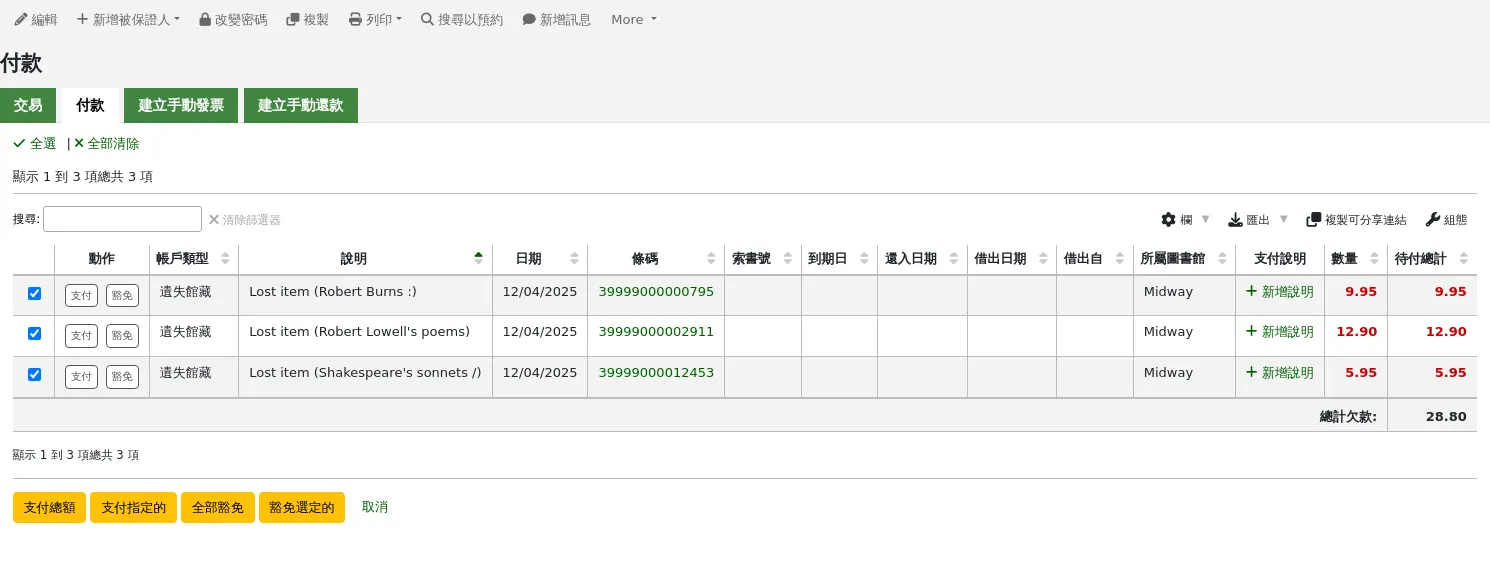
  2. Manually waive overdue charges after the item is returned by going to Patrons > [select an account] > Accounting > Make a payment. Select the charges and then select the 'Write off all' or 'Write off selected' buttons to waive overdue charges.

    Make a payment tab in the patron's accounting section

  3. Waive charges in a batch using the batch writeoff charges cronjob (misc/cronjobs/writeoff_debts.pl). Beware: the script has date parameters but does not have a library parameter; it will therefore waive fines for patrons from all libraries.

Update loan rules

Depending on the length and circumstances of the closure, consider updating or creating circulation rules specific to the library.

Warning

New or updated circulation rules only apply to new loans. Existing loans continue to use the circulation rules in place when the item was issued.

To update the circulation rules:

  1. Go to Administration > Circulation and fine rules > Select a library.

  2. Select the closing library from the dropdown menu.

  3. Check the CircControl and HomeOrHoldingBranch system preferences. These will help you understand how the circulation rules apply and decide if it is worth having different rules for the library closure.

  4. Create or update any rule as required.

Tip

Remember to make a note of the settings before making any changes, so you can easily revert them when the library reopens!