Pedidos de empréstimo inter-bibliotecas
O módulo de pedidos de empréstimo interbibliotecas acrescenta a funcionalidade de solicitar e gerir empréstimos ou cópias de materiais provenientes de fontes externas. Os leitores podem enviar um pedido através do OPAC, no separador Pedidos de empréstimo interbibliotecas das suas contas. A equipa da biblioteca pode, então, analisar e processar estes pedidos. Em alternativa, os colaboradores podem realizar os pedidos diretamente através da interface administrativa.
Configurações do módulo de empréstimo interbibliotecas
Para ativar o módulo, defina a preferência de sistema ILLModule para ‘Ativar’.
Nota
Apenas os colaboradores com a permissão ill (ou superbibliotecários) poderão criar e gerir pedidos de empréstimo interbibliotecas.
Configuração inicial
Antes de utilizar o módulo de empréstimo interbibliotecas, certifique-se de que reviu todas as configurações relacionadas com este serviço.
Backends: o módulo pode ser configurado para diferentes tipos de pedidos e fluxos de trabalho. O Koha utiliza ‘backends’ para processar os pedidos, dependendo da forma como o documento deve ser fornecido. Alguns backends estão disponíveis como plugins. Outros estão documentados na wiki da comunidade Koha, em https://wiki.koha-community.org/wiki/ILL_backends.
Preferências do sistema para o empréstimo interbibliotecas: a mais importante é a preferência do sistema ILLModule, o interruptor principal do módulo.
Permissões: os colaboradores da biblioteca responsáveis pelos pedidos de empréstimo interbibliotecas necessitam da permissão ILL (ou da permissão de superbibliotecário).
Configurações das categorias de leitores: escolha quais as categorias de utilizadores que podem fazer pedidos de empréstimo interbibliotecas a partir do OPAC.
Estado de pedidos personalizados: o módulo utiliza estados definidos pelo sistema. Além disso, pode criar estados personalizados, utilizando a categoria ILL_STATUS_ALIAS de valores autorizados, para os adaptar ao seu fluxo de trabalho.
Prefixo da biblioteca: no módulo é possível apresentar os identificadores dos pedidos com um prefixo que varia de acordo com a biblioteca associada ao pedido. Para configurar isto, atualize os
elementos <branch>(dentro de<interlibrary_loans>) no ficheiro koha-conf.xml do seu servidor.Pode repetir
<branch>e todo o conteúdo nele contido para configurar um prefixo para cada uma das suas bibliotecas.Exemplo: prefixar os pedidos da biblioteca cujo código é CPL com ‘CPL’, os pedidos da biblioteca FFL com ‘FFL’ e os pedidos da biblioteca LPL com ‘LPL’.
<branch>
   <!-- The code of this branch -->
   <code>CPL</code>
   <!-- An optional prefix for all ILL request IDs for this branch -->
   <prefix>CPL</prefix>
</branch>
<branch>
   <code>FFL</code>
   <prefix>FFL</prefix>
</branch>
<branch>
   <code>LPL</code>
   <prefix>LPL</prefix>
</branch>
Comentários dos técnicos: por omissão, estão ocultos no OPAC. Para os exibir, atualize o
elemento <staff_request_comments>(dentro de<interlibrary_loans>) no ficheiro koha-conf.xml do seu servidor.Data de resposta: por omissão, esta informação está oculta na interface da equipa. Para a apresentar com o rótulo de sua preferência, atualize o
elemento <reply_date>(dentro de<interlibrary_loans>) no ficheiro koha-conf.xml no seu servidor.
Notificações de e-mail para EEB
As notificações por email podem ser enviadas para a equipa da biblioteca quando um leitor solicita a modificação (código de notificação: ILL_REQUEST_MODIFIED) ou o cancelamento (código de notificação: ILL_REQUEST_CANCEL) de um pedido existente. Ative esta funcionalidade utilizando a preferência de sistema ILLSendStaffNotices.
O endereço de email da equipa pode ser configurado por biblioteca nas Configurações das bibliotecas. Se não existir um email para uma biblioteca, será utilizado o endereço definido na preferência de sistema ILLDefaultStaffEmail.
As notificações podem ser enviadas aos leitores com atualizações sobre os seus pedidos:
Atualização do pedido (código do aviso: ILL_REQUEST_UPDATE)
Pedido não disponível (código do aviso: ILL_REQUEST_UNAVAIL)
Pedido disponível para levantamento (código do pedido: ILL_PICKUP_READY)
Os avisos são ativados a partir das preferências padrão das mensagens definidas nas categorias de leitor.
Todos os modelos de avisos podem ser personalizados na ferramenta de avisos e recibos.
Criar pedidos de empréstimos interbibliotecas
Para criar pedidos de empréstimo interbibliotecas na interface dos técnicos, aceda ao módulo.
Clique no botão ‘Novo pedido de empréstimo interbibliotecas’.
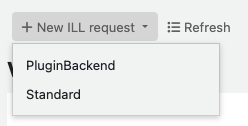
Nota
Não verá as opções da lista suspensa para selecionar um backend se:
não tem backends adicionais instalados;
tem backends adicionais instalados e selecionou alguns na preferência do sistema AutoILLBackendPriority.
Nestes casos, clicar no botão ‘Novo pedido de empréstimo interbibliotecas’ levará diretamente ao passo 3.
Selecione um backend.
Nota
As imagens aqui apresentadas referem-se apenas ao backend padrão.
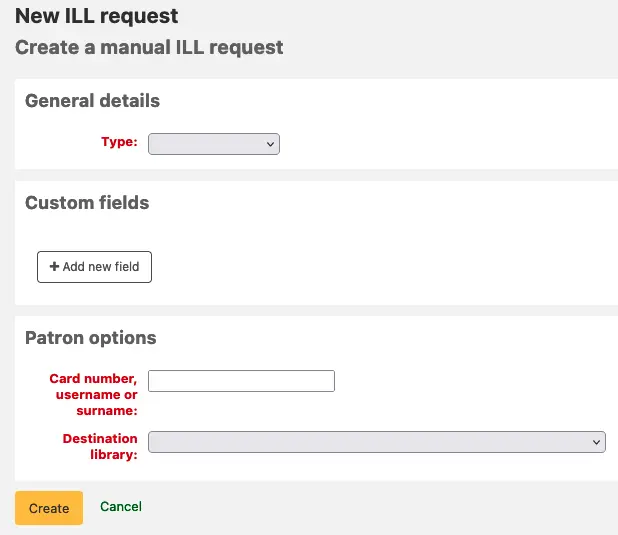
Escolha um tipo: Livro, Capítulo, Periódico, Artigo de Revista, Tese, Conferência, DVD, Outro, Recurso Genérico. Será apresentado um conjunto diferente de campos de metadados para cada tipo de pedido.
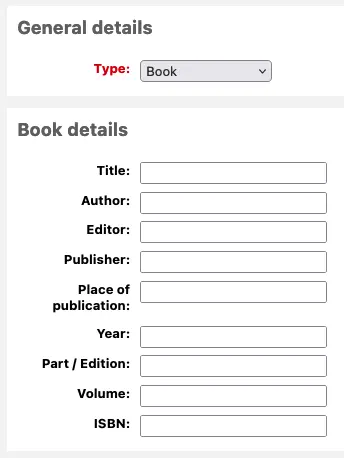
Insira as informações que desejar.
Campos personalizados: adicione um novo campo personalizado, se necessário; por exemplo, se pretender adicionar uma observação ou se estiver a utilizar o tipo de pedido ‘Outro’.
Opções do leitor:
Número do cartão, nome de utilizador ou apelido: introduza os dados do leitor.
Biblioteca de destino: selecione a biblioteca associada ao pedido.
Clique em ‘Criar’.
Nota
Se tiver ativado a preferência de sistema ILLCheckAvailability e instalado plugins para a interface dos técnicos, serão apresentados resultados de pesquisa. Se o título for encontrado, siga o endereço para um recurso relevante ou prossiga com o pedido de empréstimo interbibliotecas de qualquer forma. Se não for encontrado nenhum resultado, o pedido é criado.
Nota
Se estiver a utilizar a preferência de sistema AutoILLBackendPriority, verá o ecrã ‘Confirmar pedido’. Selecione um backend e clique em ‘Confirmar’ para criar o pedido.
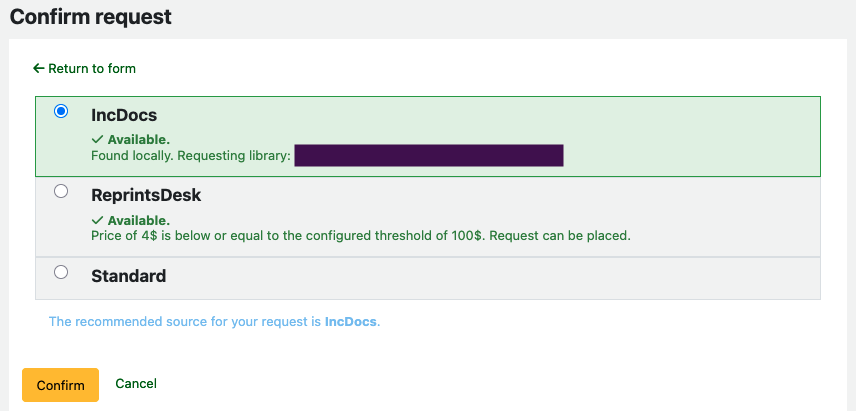
Agora pode gerir o seu pedido ou voltar à lista de todos os pedidos clicando no botão ‘Listar pedidos’.
Visualizando as solicitações de empréstimo interbibliotecas
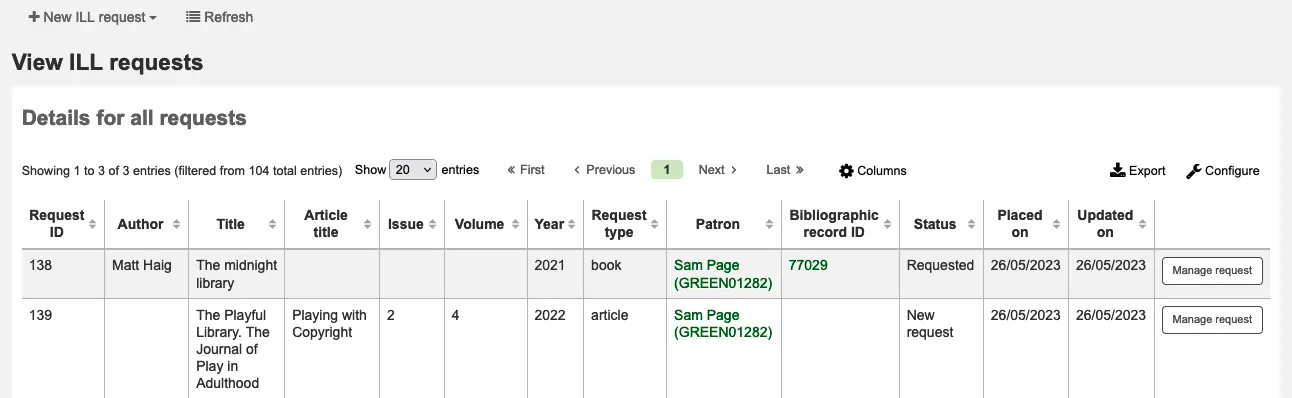
No ecrã principal dos pedidos de empréstimo interbibliotecas, pode visualizar, filtrar e classificar os seus pedidos.
Clique no botão ‘Listar pedidos’ noutras páginas do módulo para voltar a esta lista.
Dica
Pode personalizar esta visualização.
Utilize a preferência de sistema ILLRequestsTabs para organizar os pedidos em separadores personalizados.
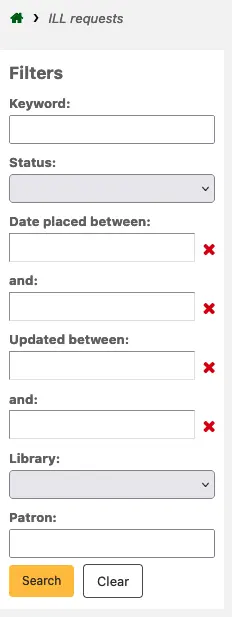
Pode usar a preferência de sistema ILLHiddenRequestStatuses para esconder pedidos que tenham o estado de completo. Use os filtros à esquerda da página para mostrar um subconjunto dos pedidos de acordo com o critério escolhido.
Existe uma grande quantidade de dados disponíveis na tabela; desloque para a direita para visualizar todas as colunas. Pode definir quais as colunas que estão visíveis ou ocultas por omissão na secção Configurações da tabela do módulo de Administração (identificador da tabela: ill-requests).
Utilize os filtros à esquerda da página para apresentar um subconjunto de pedidos com base nos critérios escolhidos.
Gestão dos empréstimo interbibliotecas
Na visualização principal de pedidos de empréstimo interbibliotecas, clique no identificador do pedido na primeira coluna ou no botão ‘Gerir pedido’ na última coluna. Os detalhes completos do pedido serão exibidos.
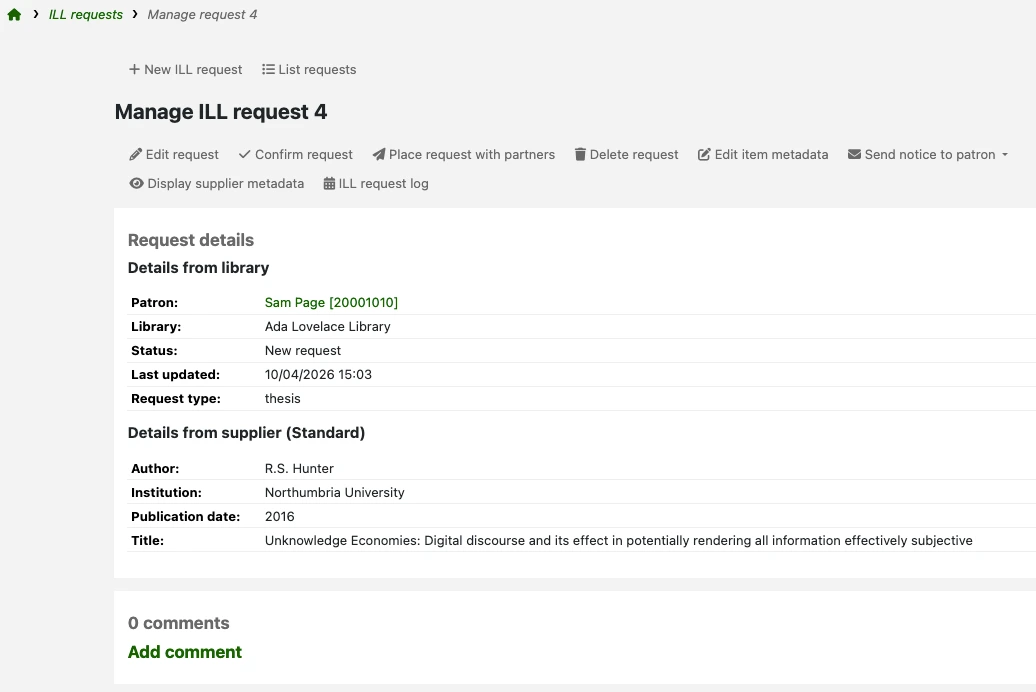
Dependendo do estado atual do pedido e do backend utilizado, você poderá ver alguns ou todos os botões descritos na próxima seção.
Neste ecrã, pode adicionar comentários ao pedido. Os comentários podem ser utilizados para registar o trabalho realizado. São apenas para leitura (não podem ser editados nem eliminados) e só são visíveis na interface dos técnicos. Se existirem comentários num pedido, um número será apresentado na coluna ‘Comentários’ ao visualizar a lista completa de pedidos de empréstimo interbibliotecas.
Pedidos autenticados
Os pedidos autenticados são pedidos vinculados ao leitor do Koha que solicitou o documento. Todos pedidos feitos na interface administrativa ou realizados no OPAC pelos leitores ligados à sua conta são pedidos autenticados.
Os novos pedidos autenticados recebem o estado ‘Novo pedido’. A equipa pode dar seguimento às solicitações imediatamente utilizando alguns dos seguintes botões.
Editar pedido: para atualizar o leitor associado ao pedido, o membro da equipa que está a gerir o pedido e a biblioteca de destino.
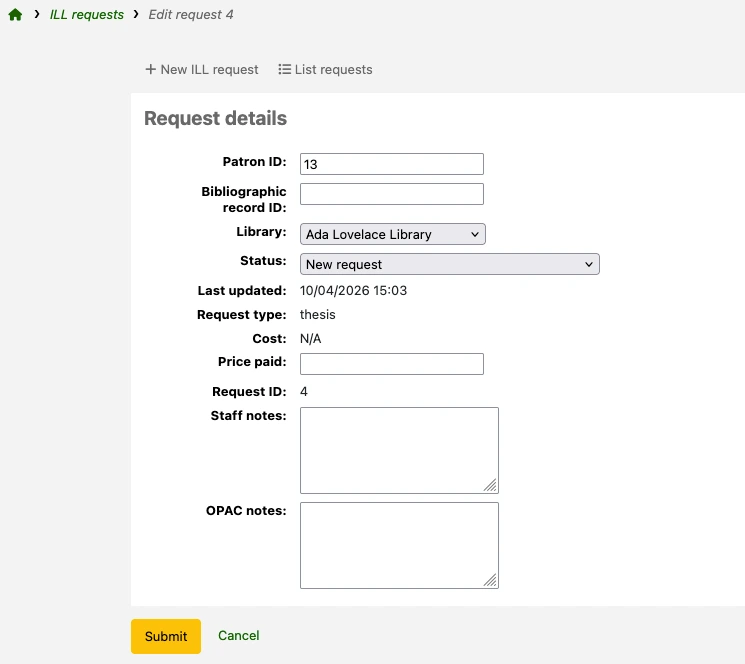
As notas para o OPAC e para uso exclusivo da equipa podem ser adicionadas no ecrã de edição.
Se tiver estados personalizados (geridos através da categoria ILL_STATUS_ALIAS de valores autorizados), pode aplicar um deles editando o campo Estado.
Confirmar pedido: para marcar manualmente o pedido como ‘Solicitado’.
Fazer um pedido a parceiros: para que o Koha envie um pedido de fornecimento a uma biblioteca. A utilização desta opção requer alguma configuração prévia. O estado da solicitação é então atualizado para ‘Solicitado a parceiros’.
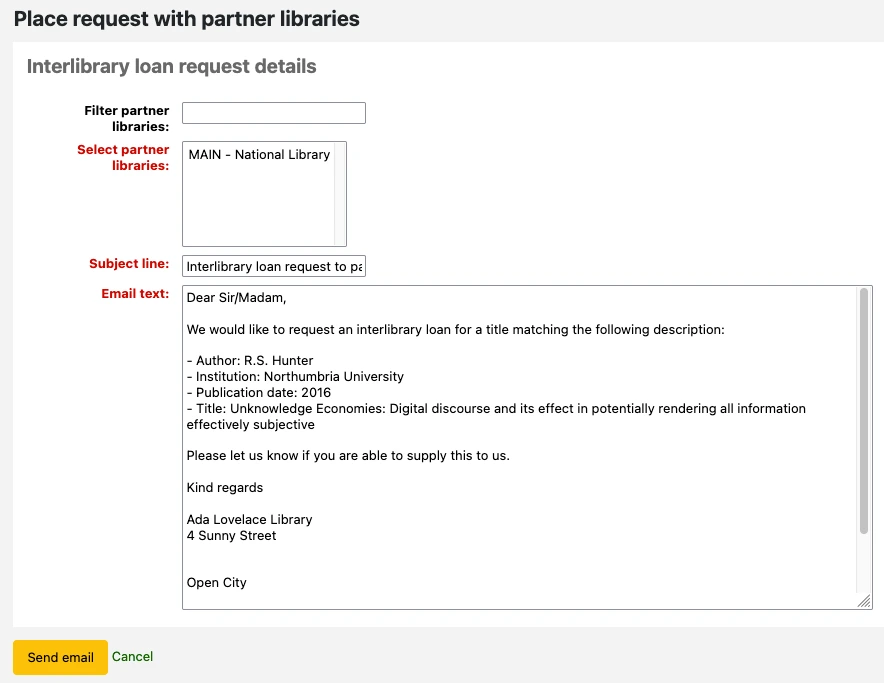
Filtrar bibliotecas parceiras: introduza palavras-chave para restringir a lista de contas apresentada no campo seguinte.
Selecionar bibliotecas parceiras: escolha um destinatário na lista dos seus parceiros de empréstimo interbibliotecas. O código da biblioteca de cada conta é apresentado em maiúsculas antes do nome da conta.
Linha de assunto: pode personalizar a linha de assunto do email que o Koha irá enviar.
Texto do email: pode personalizar o texto do email que o Koha irá enviar.
Nota
A linha de assunto e o texto do email padrão aqui utilizados estão definidos no modelo de notificação ILL_PARTNER_REQ, na ferramenta Avisos e recibos.
Eliminar pedido: para apagar o pedido completamente. Os detalhes dos pedidos eliminados não são mantidos na base de dados do Koha.
Editar metadados do exemplar: para atualizar os metadados (título, autor, etc.) do título solicitado. Isto é útil quando as informações fornecidas inicialmente estão incompletas ou incorretas.
Nota
Alguns backends podem não permitir atualizações nos metadados.
Enviar aviso ao utilizador: para enviar uma atualização ao utilizador que solicitou o título.
Pedido de empréstimo interbibliotecas pronto para levantamento: para avisar o leitor que o item solicitado está pronto para ser levantado. Pode personalizar o texto da notificação no modelo ILL_PICKUP_READY, na ferramenta Avisos e recibos.
Pedido de empréstimo interbibliotecas indisponível: para informar o leitor que a sua biblioteca não poderá fornecer o título solicitado. Pode personalizar o texto da notificação no modelo ILL_REQUEST_UNAVAIL, na ferramenta Avisos e recibos.
Visualizar metadados do fornecedor: para visualizar uma versão apenas em texto dos detalhes do título solicitado. Isto pode ser útil nos casos em que precisa de copiar e colar rapidamente esta informação fora do Koha.
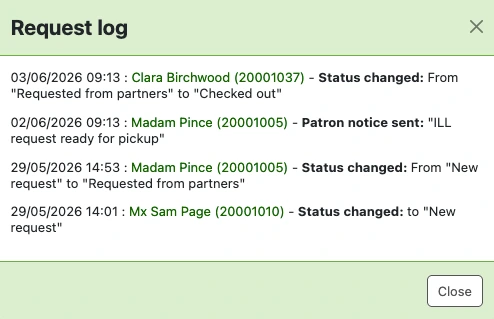
Registo de pedidos de empréstimo interbibliotecas: para visualizar o histórico de ações deste pedido. Para que qualquer informação seja aqui apresentada, a preferência de sistema IllLog deve estar definida para ‘Registar’.
Outros botões que poderá ver à medida que avança no pedido:
Mudar de fornecedor: para selecionar um backend diferente e solicitar o título a outro fornecedor. Isto é útil quando o backend incorreto foi inicialmente selecionado ou quando o fornecedor informou que não pode realizar o fornecimento.
Reverter pedido: para cancelar o pedido efetuado a uma fonte externa. Este botão é visível quando o pedido tem o estado ‘Solicitado’ ou ‘Solicitado a parceiros’. O estado é atualizado para ‘Solicitação revertida’.
Emprestar: efetuar o empréstimo do item fornecido por uma biblioteca parceira diretamente ao utilizador que efetuou o pedido. O estado da solicitação é atualizado para ‘Emprestado’.
Esta opção só está disponível se tiver activado a preferência de sistema CirculateILL. É utilizada para a circulação de materiais de empréstimo interbibliotecas.
Marcar como concluído: para atualizar o estado para ‘Concluído’ quando o pedido tiver sido atendido e totalmente processado.
Pedidos não autenticados
Se a preferência de sistema ILLOpacUnauthenticatedRequest estiver definida para ‘Permitir’, os utilizadores podem fazer pedidos sem estarem autenticados ou sem possuírem uma conta.
Versão
Esta funcionalidade foi introduzida pela primeira vez na versão 25.05 do Koha.
Os pedidos feitos desta forma recebem o estado ‘Não autenticado0. Antes de poderem ter o seu processamento continuado, é necessário ligá-los a um registo de leitor.
Na vista principal de pedidos de empréstimo interbibliotecas, identifique um pedido com o estado ‘Não autenticado’.
Clique no identificador do pedido na primeira coluna ou no botão ‘Gerir pedido’ na última coluna para visualizar os detalhes completos do pedido.
Clique no botão ‘Editar pedido’.
A secção de detalhes do pedido não autenticado apresenta as informações introduzidas pelo leitor que fez a solicitação. Utilize-a para pesquisar um leitor existente.
O campo ‘ID do leitor’, no topo da página, pode ser utilizado para uma pesquisa rápida de leitores. Comece a escrever o nome do leitor para ver sugestões.
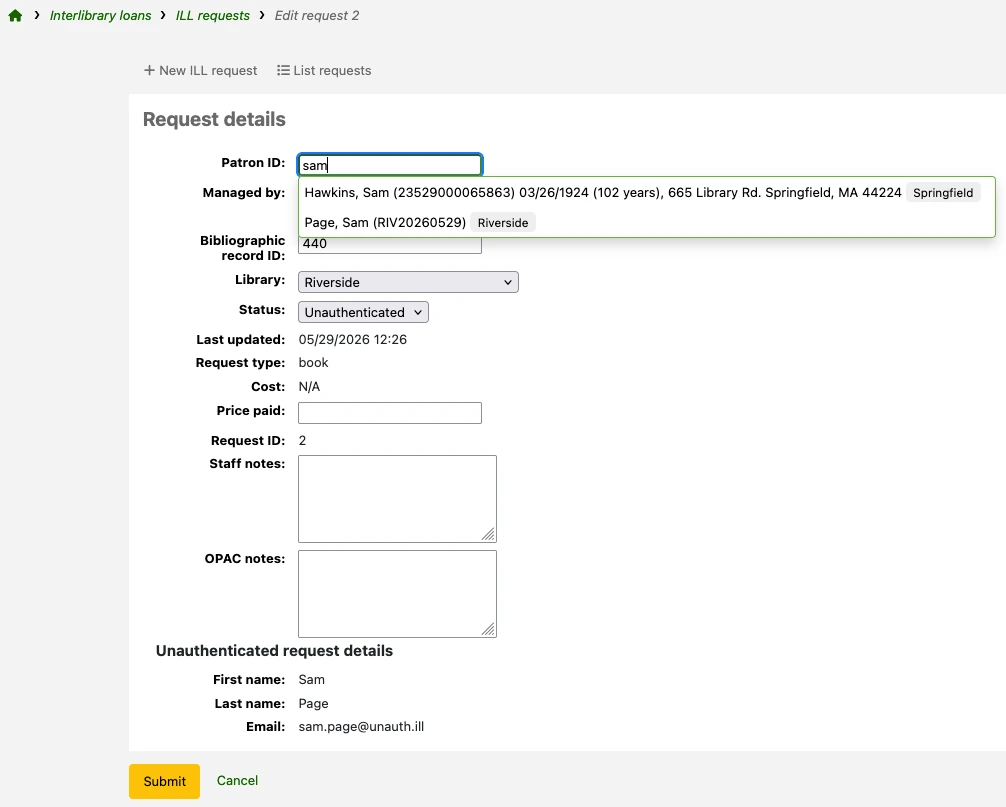
Em alternativa, pode abrir o módulo Leitores noutro separador do navegador e realizar a sua pesquisa.
Aviso
Se o leitor que fez o pedido não autenticado ainda não for membro da biblioteca, terá de adicionar um novo registo de leitor para o mesmo antes de prosseguir com o pedido de empréstimo interbibliotecas.
Quer esteja a pesquisar um leitor pelo nome no campo ‘ID do leitor’ ou a colar o número do cartão nesse campo, terá de selecionar o leitor correto a partir das sugestões. O campo será então atualizado para apresentar o número de identificação do leitor.
Clique em ‘Submeter’ para guardar as suas alterações.
Agora pode gerir o pedido da mesma forma que os outros pedidos autenticadas. A secção de detalhes do pedido não autenticado deixará de ser apresentada, uma vez que já não se trata de um pedido não autenticado.
Marcar os pedidos como concluídos
Alguns backends atualizarão automaticamente o estado do pedido para ‘Concluído’.
Para todos os outros backends, deve concluir o pedido manualmente clicando no botão ‘Marcar como concluído’ na página de gestão de pedidos.
Se não tiver nenhum valor autorizado do tipo ILL_STATUS_ALIAS definido, o estado do pedido será atualizado para ‘Concluído’.
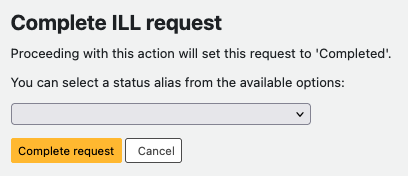
Se tiver definido alguns valores autorizados para ILL_STATUS_ALIAS, ser-lhe-á pedido que selecione um deles.
Versão
O formulário para o alias de estado foi introduzido pela primeira vez na versão 25.11 do Koha.
Pode ainda concluir o pedido sem selecionar um estado. Clique em ‘Concluir pedido’ para confirmar a sua escolha. O estado do pedido será atualizado para ‘Concluído’ e o alias de estado escolhido será atribuído ao pedido.
Dica
Considere utilizar os valores autorizados ILL_STATUS_ALIAS em conjunto com a preferência de sistema ILLHiddenRequestStatuses ou a preferência de sistema ILLRequestsTabs para ocultar ou separar alguns pedidos concluídos da lista completa de pedidos de empréstimo interbibliotecas. Isto será útil quando começar a acumular um grande número de pedidos concluídos.
Efetuar o pedido nas bibliotecas parceiras
Se tem uma rede de bibliotecas parceiras que permitem pedidos de empréstimo inter-bibliotecas pode fazer essa gestão no Koha. Primeiro necessita de criar as contas para as bibliotecas parceiras:
Crie uma categoria de utilizador para ser atribuída às bibliotecas parceiras. Pode definir a descrição como ‘Empréstimo interbibliotecas’ ou ‘Biblioteca’ e o tipo de categoria como ‘Organização’. De seguida, introduza essa categoria na preferência de sistema ILLPartnerCode.
Necessita de criar uma conta de leitor com essa categoria para cada biblioteca parceira.
Cada biblioteca deve ter um endereço de email válido, já que será esse o mecanismo para enviar os pedidos de empréstimos inter-bibliotecas.
Nota
Será usado o modelo ILL_PARTNER_REQ e o texto pode ser alterado na ferramenta Avisos e recibos.
A partir deste ponto você poderá usar a opção ‘Efetuar o pedido nas bibliotecas parceiras’ quando realizar os pedidos.
Nota
Se tiver a preferência de sistema ILLCheckAvailability ativo, pode usar os plugins para pesquisar os catálogos de bibliotecas parceiras usando o protocolo Z39.50 antes de confirmar o pedido a esse parceiro.
Circular materiais ILL
Se tiver ativado a preferência CirculateILL, pode realizar o empréstimo de exemplares diretamente a partir do pedido.
Quando cria um tipo de pedido Livro um registo abreviado é criado automaticamente de acordo com o modelo de Catalogação rápida. Assim que o pedido tiver um estado adequado, o botão de Emprestar é mostrado na barra de ferramentas. Ao clicar no botão vai permitir que o utilizador empreste o exemplar ao leitor que fez o pedido ou a um leitor estatístico.
Para emprestar um exemplar:
Clique no botão Emprestar.
Selecione o tipo de documento. Um exemplar é criado automaticamente e adicionado ao registo bibliográfico criado aquando do pedido. O código de barras para o exemplar ficará no formato ILL-requestid.
De seguida, no ecrã de empréstimo ao leitor escolha a data de fim do empréstimo. Se não escolher a data, será usada a regra de circulação para calcular automaticamente a data de fim.
Assim que o exemplar seja emprestado, o estado do pedido é alterado para ‘Emprestado’ e após a devolução é alterado para ‘Devolvido à biblioteca’.
Os registos bibliográficos criados a partir de um pedido de empréstimo inter-bibliotecas vai ter um separador extra que permite verificar a ligação para pedido no módulo de empréstimos inter-bibliotecas.
Relatórios para empréstimo interbibliotecas
Para consultar informação relacionada com o empréstimo interbibliotecas (ILL) no módulo de Relatórios, as principais tabelas da base de dados são:
illrequests
illrequestattributes
As informações genéricas sobre transações relacionadas com o empréstimo interbibliotecas são armazenadas em:
statistics
O tipo de estatística ‘illreq_created’ corresponde à criação de um pedido de empréstimo interbibliotecas.
O tipo de estatística ‘illreq_comp’ corresponde a um pedido de empréstimo interbibliotecas marcado como concluído.
pseudonymized_transactions (se as preferências do sistema de pseudonimização estiverem em utilização)
O valor ‘illreq_created’ do campo pseudonymized_transactions.transaction_type corresponde à criação de um pedido de empréstimo interbibliotecas.
O valor ‘illreq_comp’ do campo pseudonymized_transactions.transaction_type corresponde a um pedido de empréstimo interbibliotecas marcado como concluído.
Versão
O registo de transações nas tabelas statistics e pseudonymized_transactions é uma funcionalidade introduzida pela primeira vez na versão 25.11 do Koha.
Status do pedido
O Koha possui um conjunto de estados principais de empréstimo interbibliotecas, listados abaixo (com os códigos de estado tal como armazenados na tabela illrequests). Os backends instalados podem utilizar estados adicionais.
Novo pedido (NEW)
Não autenticado (UNAUTH)
Pedido (REQ)
Pedido aos parceiros (GENREQ)
Pedido revertido (REQREV)
Cancelamento pedido – um leitor pediu o cancelamento a partir do OPAC (CANCREQ)
Completo (COMP)
Emprestado (CHK)
Devolvido à biblioteca (RET)