Contenu enrichi
Aller à : Plus > Administration > Préférences système > Contenu enrichi
Important
Lisez toujours les termes et ententes de service associés aux sources externes de données pour être certain que vous utilisez les produits dans les limites de la loi.
Note
Vous ne pouvez pas avoir plus d’un service pour les images de couverture (incluant les images de couvertures locales). Si vous en configurez plus d’un, vous recevrez plusieurs images de couverture. Choisissez plutôt une seule source pour les images de couverture.
Tous
FRBRizeEditions
Action : ___, à l’interface professionnelle, les autres éditions d’un titre (telles qu’identifiées par un des services proposés par Koha).
Valeurs :
Ne pas afficher
Afficher
Par défaut : Ne pas afficher
Description :
Utilisant les règles établies dans le Functional Requirements for Bibliographic records, cette option, quand elle est activée, rassemble toutes les éditions d’un même titre disponible dans votre catalogue, quel que soit le support. Les exemplaires apparaîtront sous un onglet “Editions” dans la page de détails du titre concerné. Selon le Libraries Unlimited’s Online Dictionary for Library and Information Science (https://odlis.abc-clio.com/), FRBRiser le catalogue implique de lier les notices MARC d’oeuvres identiques. La FRBRisation rassemble des entités (ensembles d’Oeuvres, Expressions ou Manifestations) plutôt que uniquement des ensembles d’Items. Cela peut aider les adhérents dans leur sélection d’items, expressions et manifestations liés, pour répondre à leurs besoins. Si la préférence système est paramétrée sur « Afficher », l’interface professionnelle va chercher, dans un ou plusieurs web services ISBN, les ISBN associés et afficher un onglet Editions sur la page de détails. Une fois cette préférence système activée, la bibliothèque doit choisir une des options ISBN (telle que ThingISBN). Cette option n’est disponible que pour l’interface professionnelle - l’option OPACFRBRizeEditions doit être activée pour obtenir l’onglet Editions à l’OPAC.

Note
Nécessite que vous activiez un ou plusieurs des services ISBN (comme ThingISBN).
OPACFRBRizeEditions
Action : ___, à l’OPAC, les autres éditions d’un titre.
Valeurs :
Ne pas afficher
Afficher
Par défaut : Ne pas afficher
Description :
Utilisant les règles établies dans le Functional Requirements for Bibliographic records, cette option, quand elle est activée, rassemble toutes les éditions d’un même titre disponible dans votre catalogue, quel que soit le support. Les exemplaires apparaîtront sous un onglet “Editions” dans la page de détails du titre concerné. Selon le Libraries Unlimited’s Online Dictionary for Library and Information Science (https://odlis.abc-clio.com/), FRBRiser le catalogue implique de lier les notices MARC d’oeuvres identiques. La FRBRisation rassemble des entités (ensembles d’Oeuvres, Expressions ou Manifestations) plutôt que uniquement des ensembles d’Items. Cela peut aider les adhérents dans leur sélection d’items, expressions et manifestations liés, pour répondre à leurs besoins. Si la préférence système est paramétrée sur « Afficher », l’OPAC va chercher, dans un ou plusieurs web services ISBN, les ISBN associés et afficher un onglet Editions sur la page de détails. Une fois cette préférence activée, la bibliothèque doit choisir une des options ISBN (telle que ThingISBN). Cette option n’est disponible que pour l’OPAC - l’option FRBRizeEditions doit être activée pour obtenir l’onglet Editions à l’interface professionnelle.
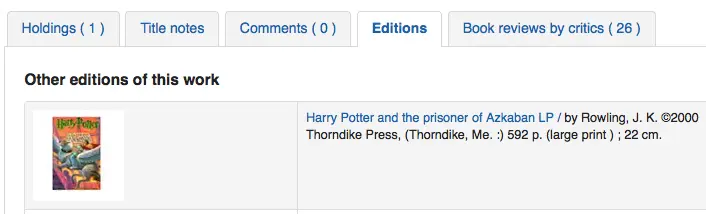
Cette préférence système rassemble toutes les éditions d’un même titre disponibles dans votre catalogue, quel que soit leur support. Les exemplaires s’afficheront dans un onglet “Editions” sur la page de détails du titre concerné.
Note
Nécessite que vous activiez un ou plusieurs des services ISBN (comme ThingISBN).
Amazon
AmazonAssocTag
Action : Placer l’étiquette Partenaire Amazon ___ sur les liens qui renvoient sur Amazon.
Note
Cela peut rapporter des commissions à votre bibliothèque si un adhérent décide d’acheter un article après avoir cliqué sur Amazon à partir de votre site.
Description :
Une étiquette “Partenaire Amazon” permet à une bibliothèque de percevoir une commission sur tous les achats réalisés sur Amazon quand un adhérent accède au site Amazon via le lien sur le site de la bibliothèque. Pour plus d’information sur le programme Partenaire Amazon, veuillez consulter le site d’Amazon, https://affiliate-program.amazon.com/. Avant l’obtention de l’étiquette Partenaire, la bibliothèque doit d’abord demander un compte Amazon Web Services (AWS). Cette demande est gratuite et peut être réalisée sur https://aws.amazon.com. Une fois le compte AWS ouvert, la bibliothèque peut obtenir l’étiquette Partenaire Amazon.
Enregistrez-vous sur : https://affiliate-program.amazon.com/
AmazonCoverImages
Action : ___ les couvertures de Amazon sur les pages de résultat et de détail dans l’interface professionnelle.
Valeurs :
Ne pas afficher
Afficher
Par défaut : Ne pas afficher
Description :
Cette préférence système permet d’afficher ou non les images de couverture de Amazon dans l’interface professionnelle. Les images de couverture sont récupérées sur Amazon, qui les sélectionne sur la base du premier ISBN de la notice MARC. Amazon propose ce service gratuitement. Si la valeur de cette préférence système est « Afficher », les images de couverture apparaîtront dans l’interface professionnelle, alors que si elle est paramétrée sur « Ne pas afficher », les images n’apparaîtront pas. Enfin, si vous utilisez les images de couverture Amazon, tous les autres services d’images de couverture doivent être désactivés, sinon, ils empêcheront AmazonCoverImages de fonctionner correctement.
AmazonLocale
Action : Utiliser les données du site ___ d’Amazon.
Valeur :
américain
anglais
canadien
français
allemand
indien
japonais
Par défaut : américain
OPACAmazonCoverImages
Action : ___ les images de couvertures de Amazon sur les pages de résultat et de détail à l’OPAC.
Valeurs :
Ne pas afficher
Afficher
Par défaut : Ne pas afficher
Description :
Cette préférence système permet d’afficher ou non les images de couverture de Amazon à l’OPAC. Les images de couverture sont récupérées sur Amazon, qui les sélectionne sur la base du premier ISBN de la notice MARC. Amazon propose ce service gratuitement. Si la valeur de cette préférence système est « Afficher », les images de couverture apparaîtront à l’OPAC, alors que si elle est paramétrée sur « Ne pas afficher », les images n’apparaîtront pas. Enfin, si vous utilisez les images de couverture Amazon, tous les autres services d’images de couverture doivent être désactivés, sinon, ils empêcheront AmazonCoverImages de fonctionner correctement.
Babelthèque
Babelthèque
Action : ___ inclure les informations de Babelthèque (critiques, citations, etc.) sur les pages de détail de l’OPAC.
Valeurs :
Oui,
Non, ne pas
Par défaut : Non, ne pas
Description :
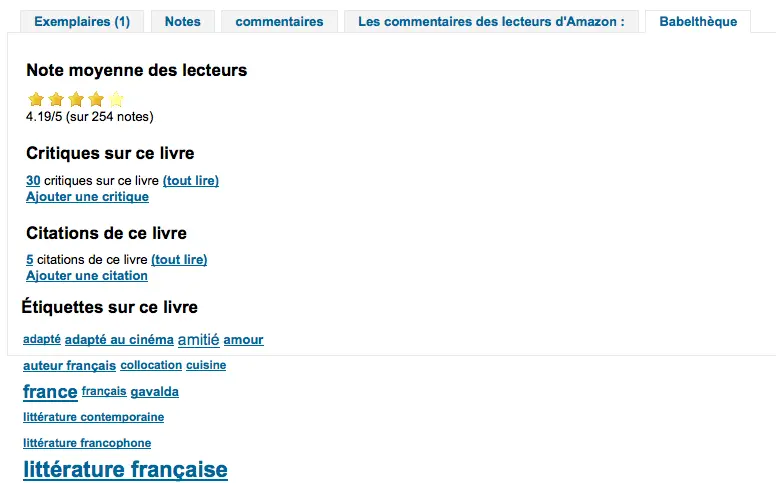
Cette préférence système rend possible l’affichage d’un onglet Babelthèque dans l’OPAC, permettant aux adhérents l’accès aux tags, aux critiques, et aux informations supplémentaires sur le titre offerts par Babelthèque. L’information proposée par Babelthèque est tirée du site francophone Babelio, un service francophone similaire à “LibraryThing for Libraries”. Plus d’information est disponible sur le site Babelthèque. Les bibliothèques qui veulent avoir accès à cette information doivent premièrement s’inscrire à ce service. Veuillez noter que cette information n’est disponible qu’en français.
Babeltheque_url_js
Action : Utiliser cette URL pour le fichier javascript de Babelthèque : ___ (par exemple http://www.babeltheque.com/bw_XX.js)
Babeltheque_url_update
Action : Utiliser cette URL pour la mise à jour régulière de Babelthèque : ___ (par exemple : http://www.babeltheque.com/…/file.csv.bz2).
Baker & Taylor
Attention
Baker and Taylor a cessé toute activé en 2025. Ces préférences système ont été retirées de Koha à partir de sa version 26.05.
BakerTaylorBookstoreURL
Action : Les liens « My Library Bookstore » de Baker & Taylor sont accessibles à https:// ___ isbn
Par défaut : [Vide]
Description :
Certaines bibliothèques génèrent des fonds supplémentaires pour la bibliothèque en vendant des livres et d’autres matériels qui sont achetés ou ont été précédemment loués à Baker & Taylor. Ces documents sont accessibles via un lien sur le site web de la bibliothèque. Ce service est souvent appelé « My Library Bookstore ». Pour participer à ce programme, la bibliothèque doit d’abord s’inscrire et payer le service auprès de Baker & Taylor. Des informations supplémentaires sur ce service et d’autres services fournis par Baker & Taylor sont disponibles sur le site web de Baker & Taylor. La préférence système BakerTaylorBookstoreURL établit l’URL afin d’établir un lien avec la librairie en ligne de la bibliothèque soutenue par Baker & Taylor, si une telle librairie a été définie. Le champ est, par défaut, laissé vide; si aucune valeur n’est saisie, les liens vers “My Library Bookstore” resteront inactifs. Si vous activez cette préférence système, entrez le nom d’hôte et le numéro de parent de la bibliothèque à l’endroit approprié dans l’URL. La valeur « key » (key=) doit être ajoutée à l’URL, et https:// doit être placé en premier.
Note
Le laisser vierge pour désactiver ces liens.
Note
Assurez-vous d’obtenir ces informations auprès de Baker & Taylor lors de votre inscription.
BakerTaylorEnabled
Action : ___ des liens et des images de couvertures de Baker & Taylor à l’OPAC et à l’interface professionnelle. Vous devez saisir un identifiant et un mot de passe (qui peuvent être vus dans les liens des images).
Valeurs :
Ajouter
Ne pas ajouter
Par défaut : Ne pas ajouter
Description :
Cette préférence système permet d’afficher les contenus de Baker & Taylor (critiques, descriptions, images de couverture, etc.) à la fois dans l’interface professionnelle et à l’OPAC. Les bibliothèques souhaitant afficher les contenus de Baker & Taylor doivent d’abord s’enregistrer et payer Baker & Taylor pour ce service. Si les contenus de Baker & Taylor sont activés, assurez-vous de désactiver les autres services de critiques et images de couverture pour éviter toute interférence.
Note
Pour utiliser cette fonctionnalité, vous devrez configurer les préférences système BakerTaylorUsername et BakerTaylorPassword
BakerTaylorUsername et BakerTaylorPassword
Action : Accéder à Baker & Taylor en utilisant le nom d’utilisateur ___ et le mot de passe ___
Par défaut : [Vide]
Descriptions :
Cette préférence système est seulement applicable si la bibliothèque possède un abonnement au service externe “Content Café” de Baker & Taylor. Utilisez le champ disponible pour saisir le nom d’utilisateur et le mot de passe Content Café de la bibliothèque. Assurez-vous aussi que les paramètres de BakerTaylorBookstoreURL et BakerTaylorEnabled sont bien configurés. Le “Content Café” est un service de contenu enrichi comme des couvertures, des critiques professionnelles et des résumés qui sont affichés avec les résultats de recherche dans l’OPAC et dans l’interface professionnelle. Pour plus d’informations sur ce service, veuillez consulter le site de Baker & Taylor.
Note
Assurez-vous d’obtenir ces informations auprès de Baker & Taylor lors de votre inscription.
Cache des images de couverture Coce
Coce est un cache d’URL d’images distant. Avec cette option, les images de couverture ne sont pas récupérées directement chez Amazon, Google etc. Leurs URLs sont interrogées via un web service vers Coce, qui gère un cache d’URLs.
Coce a beaucoup d’intérêts lorsqu’il s’agit de choisir et d’afficher des images de couvertures dans Koha :
Si la couverture d’un livre n’est pas disponible chez un fournisseur mais qu’elle l’est chez un autre, Koha saura l’afficher, ce qui ne sera pas le cas si Coce n’a pas été paramétré.
Comme les URL sont dans le cache, il ne sera pas nécessaire de réitérer la demande pour chaque couverture de livre.
Les couvertures de livres de Amazon sont récupérées avec l’API Amazon Product Advertising, ce qui signifie que plus de couvertures sont récupérées (ISBN13).
Note
Coce n’est pas fourni avec Koha. Votre installation Koha n’aura pas de serveur Coce paramétré. Avant de pouvoir activer cette fonctionnalité, vous devrez vous assurer d’avoir un serveur Coce configuré. Les instructions sur l’installation et la configuration de Coce peuvent être trouvées sur la page github officielle https://github.com/fredericd/coce.
IntranetCoce
Action : ___ un service de cache d’images Coce dans l’interface professionnelle.
Valeurs :
Ne pas activer
Activer
Par défaut : Ne pas activer
Description :
Paramétrer cette préférence système sur “Activer” vous permettra de rassembler les images de couverture de différents fournisseurs afin de les afficher sur votre catalogue de l’interface professionnelle.
OpacCoce
Action : ___ un service de cache d’images Coce dans l’OPAC.
Valeurs :
Ne pas activer
Activer
Par défaut : Ne pas activer
Description :
Paramétrer cette préférence système sur “Activer” vous permettra de rassembler les images de couverture de différents fournisseurs afin de les afficher sur votre catalogue à l’OPAC.
CoceHost
Action : URL du serveur Coce ___
Par défaut : [Vide]
Description :
Ce sera l’URL complète (commençant par http://) de votre serveur Coce.
CoceProviders
Action : Utiliser les fournisseurs suivants pour récupérer les couvertures ___
Valeurs :
[Tout sélectionner]
Amazon Web Services
Google Books
Open Library
Par défaut : [Vide]
Description :
Les fournisseurs choisis ici seront utilisés pour rassembler les images de couvertures pour l’affichage dans votre catalogue Koha.
Google
GoogleJackets
Action : ___ les images des couvertures des livres de Google Books sur les pages de résultat et de détail de l’OPAC.
Valeurs :
Ajouter
Ne pas ajouter
Par défaut : Ne pas ajouter
Description :
Ce paramétrage détermine l’affichage des couvertures à partir de la base de données gratuite Google Books, via l’API Google Books. Veuillez noter que pour utiliser cette fonctionnalité, tous les autres fournisseurs de couvertures doivent être désactivés.
Contenu HTML5
HTML5MediaEnabled
Action : Afficher un onglet avec un lecteur média en HTML5 pour les fichiers catalogués dans le champ 856 ___
Valeurs :
à l’OPAC et dans l’interface professionnelle
à l’OPAC
dans l’interface professionnelle
nulle part
Par défaut : nulle part
Description :
Si vous avez des éléments de média dans le champ 856 de votre notice MARC, cette préférence système permet d’exécuter / lancer ces fichiers de média en utilisant HTML5 dans un onglet particulier.
HTML5MediaExtensions
Action : Extensions des fichiers de médias ___
Par défaut : webm|ogg|ogv|oga|vtt
Description :
Saisir les extensions de fichiers séparées par une barre verticale (|)
HTML5MediaYouTube
Action : ___ les liens YouTube comme vidéos.
Valeurs :
Ne pas intégrer
Intégrer
Par défaut : Ne pas intégrer
Note
Pour activer ceci, activez tout d’abord HTML5MediaEnabled
Description :
Cette préférence système permettra au champ MARC21 856$u qui cible un lien YouTube d’être affiché en tant que vidéo exécutable dans les pages définies par HTML5MediaEnabled.
LibraryThing
LibraryThing for Libraries est un service payant. Vous devez d’abord contacter directement LibraryThing pour vous informer des tarifs et des abonnements. Pour en savoir plus, veuillez consulter https://www.librarything.com/forlibraries/. Pour de plus amples informations sur la configuration, merci de consulter le wiki de LibraryThing : https://wiki.librarything.com/index.php/Koha
LibraryThingForLibrariesEnabled
Action : ___ les critiques, exemplaires similaires et tags provenant de LibraryThing sur les pages de détail de l’OPAC.
Valeurs :
Ne pas afficher
Afficher
Par défaut : Ne pas afficher
Description :
Ce paramétrage n’est applicable que si la bibliothèque à souscrit un abonnement payant aux services LibraryThing pour bibliothèques. Ce service peut fournir aux adhérents des informations étendues sur les documents du catalogue comme des recommandations de lecture. Il propose aussi des fonctionnalités avancées tels la recherche par tags, les critiques par des adhérents, et l’affichage d’une bibliothèque virtuelle par l’onglet Détails.
Note
Si ceci est paramétré sur “Afficher”, vous devrez saisir une valeur dans la préférence système LibraryThingForLibrariesID.
LibraryThingForLibrariesID
Action : Accéder à LibraryThing en utilisant le numéro de client ___
Par défaut : [Vide]
Description :
Ce paramétrage n’est applicable que si la bibliothèque a souscrit un abonnement payant au service LibraryThing for Libraries. Utilisez le champ fourni pour saisir l’identifiant LibraryThing for Libraries de votre bibliothèque, fourni par LibraryThing. Cet identifiant est une série de chiffres sous la forme ###-#########, et peut être trouvé sur le compte de la bibliothèque chez LibraryThing for Libraries. Ce service peut proposer aux adhérents de leur afficher des informations étendues à propos des documents du catalogue, comme des recommandations de lecture ou des couvertures. Il peut aussi offrir des fonctionnalités avancées comme la recherche par tag, les critiques par des adhérents, et l’affichage d’une bibliothèque virtuelle par l’onglet Détails.
LibraryThingForLibrariesTabbedView
Action : Montrer les contenus LibraryThing for Libraries ___
Valeurs :
au même niveau que les données bibliographiques
dans des onglets
Par défaut : au même niveau que les données bibliographiques
Description :
Ce paramétrage n’est applicable que si la bibliothèque a souscrit un abonnement payant au service LibraryThing for Libraries. Ce service peut proposer aux adhérents de leur afficher des informations étendues à propos des documents du catalogue, comme des recommandations de lecture ou des couvertures. Il peut aussi offrir des fonctionnalités avancées comme la recherche par tag, les critiques par des adhérents, et l’affichage d’une bibliothèque virtuelle par l’onglet Détails.
ThingISBN
Action : ___ le service ThingISBN pour montrer les autres éditions d’un titre
Valeurs :
Ne pas utiliser
Utiliser
Par défaut : Ne pas utiliser
Description :
Paramétrez sur “Utiliser” pour afficher un onglet « Éditions » sur la page de détails de l’exemplaire. Les éditions sont listées, complétées avec leur couverture (si vous avez activé un des services fournissant des couvertures) et des données bibliographiques. La ressource est le service web ThingISBN de LibraryThing. C’est un service gratuit pour les sites non marchands avec moins de 1000 requêtes par jour.
Note
Nécessite que FRBRizeEditions et/ou OPACFRBRizeEditions soient paramétrées sur “Afficher”
Note
Ceci est bien distinct de Library Thing for Libraries et n’a pas de coût associé avec.
Images de couvertures locales ou distantes
AllowMultipleCovers
Action : ___ de rattacher plusieurs images à chaque notice bibliographique et exemplaire.
Valeurs :
Autoriser
Ne pas autoriser
Par défaut : Ne pas autoriser
Description :
Si cette préférence système est configurée sur “Permettre” alors vous pourrez téléverser de multiples images qui apparaîtront dans l’onglet “images” de la notice bibliographique, à l’OPAC et dans l’interface professionnelle.
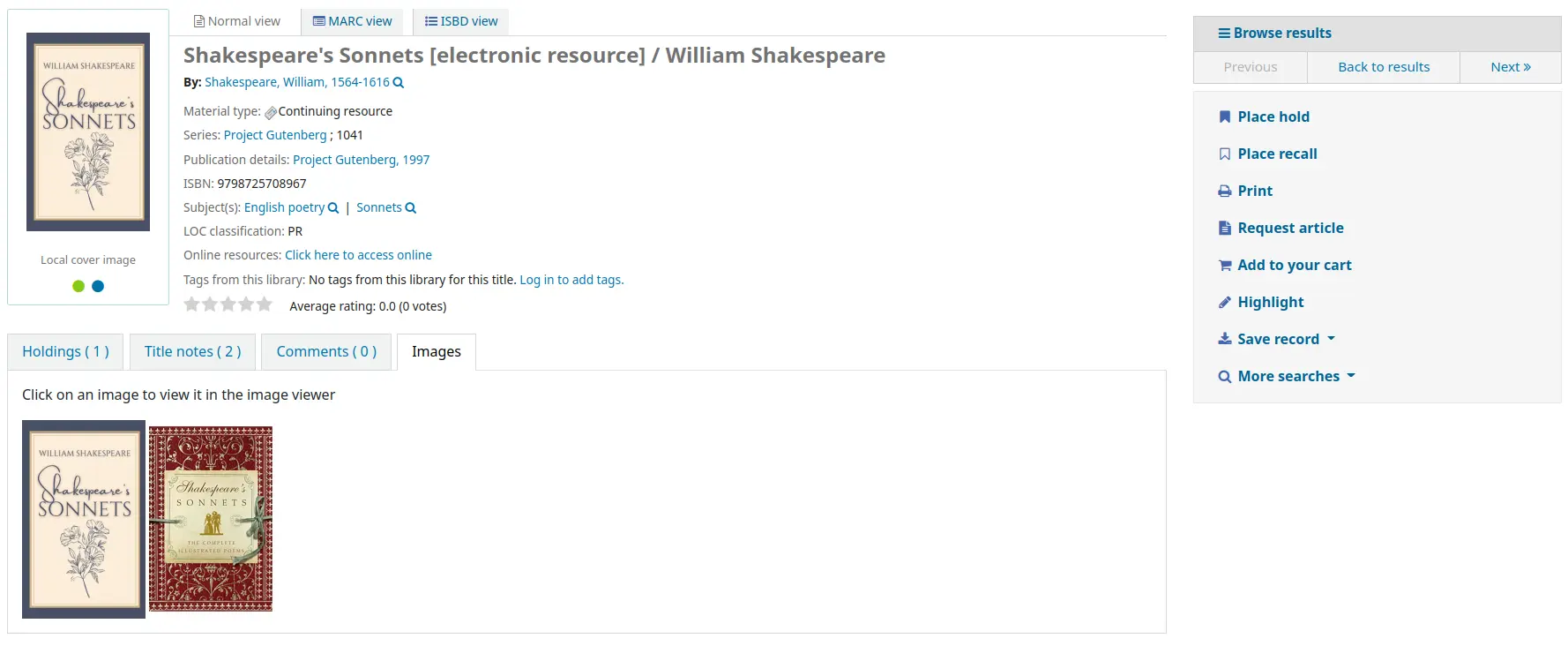
Cette préférence système nécessite que LocalCoverImages et/ou OPACLocalCoverImages soi(en)t paramétrée(s) sur “Afficher”.
CustomCoverImages
Action : ___ des images d’une URL personnalisée distante dans l’interface professionnelle.
Valeurs :
Ne pas afficher
Afficher
Par défaut : Ne pas afficher
Description :
Si vous utilisez CustomCoverImagesURL, cette préférence système indique si vous voulez que ces couvertures soient affichées dans l’interface professionnelle.
Utilisez OPACCustomCoverImages si vous voulez que ces images apparaissent à l’OPAC.
OPACCustomCoverImages
Action : ___ des images d’une URL personnalisée distante à l’OPAC.
Valeurs :
Ne pas afficher
Afficher
Par défaut : Ne pas afficher
Description :
Si vous utilisez CustomCoverImagesURL, cette préférence système indique si vous voulez que ces images de couvertures soient affichées à l’OPAC.
Utilisez CustomCoverImages si vous souhaitez que ces images apparaissent dans l’interface professionnelle.
CustomCoverImagesURL
Action : Utiliser l’URL suivante : ___
Par défaut : [Vide]
Description :
Vous pouvez utiliser des codes pour remplacer les données bibliographiques dans l’URL : {isbn}, {issn}, {normalized_isbn}
Par exemple : http://www.mylibrarysite.com/covers/{isbn}.png
Vous pouvez aussi utiliser les champs et sous-champs MARC dans l’URL, comme ceci : {024$a}
Par exemple : http://www.mylibrarysite.com/covers/{024$a}.png
Assurez-vous d’activer CustomCoverImages si vous souhaitez que ces images apparaissent dans l’interface professionnelle et OPACCustomCoverImages si vous souhaitez qu’elles s’affichent à l’OPAC.
LocalCoverImages
Action : ___ les images de couverture locales sur les pages de résultats et de détail sur l’interface professionnelle.
Valeurs :
Ne pas afficher
Afficher
Par défaut : Ne pas afficher
Description :
Paramétrer cette préférence système sur “Afficher” vous permettra de télécharger vos propres images de couverture vers les notices bibliographiques et de les afficher sur les pages de détail de l’interface professionnelle.
Voir aussi :
OPACLocalCoverImages
Action : ___ les images de couverture locales sur les pages de recherche et de détail à l’OPAC.
Valeurs :
Ne pas afficher
Afficher
Par défaut : Ne pas afficher
Description :
Paramétrer cette préférence système sur “Afficher” vous permettra de télécharger vos propres images de couverture vers les notices bibliographiques et de les afficher sur les pages de détail de l’OPAC.
Voir aussi :
Manuel
KohaManualBaseURL
Action : Adresse du manuel Koha ___
Par défaut : https://koha-community.org/manual/
Description :
Vous pouvez préciser l’adresse du manuel Koha à utiliser. Cette URL sera utilisée dans les pages d’assistance lorsque vous cliquerez sur “Aide”, dans l’angle en haut à droite.
Par défaut, le manuel Koha est utilisé mais cette préférence système vous permet de lui substituer vos propres pages d’assistance.
Si vous saisissez une URL commençant par “/”, la valeur de staffClientBaseURL sera utilisée comme préfixe.
Notez qu’elle sera suffixée de la version / la langue / le format (/17.11/en/html)
KohaManualLanguage
Action : Langue du manuel en ligne ___
Par défaut : anglais
Description :
Par défaut, la langue de l’interface professionnelle Koha sera utilisée comme langue du manuel. Quoi qu’il en soit, si le manuel n’est pas traduit dans cette langue, cette préférence système précise la langue de secours.
Novelist Select
Novelist Select n’est pas un service gratuit. Contactez votre représentant Ebsco pour savoir comment vous connecter et activer ce contenu dans l’OPAC.
Note
- Novelist Select n’inclut pas les images de couverture dans les pages de résultats de recherche
ni dans les pages de détails des notices bibliographiques. Vous pouvez choisir n’importe quel autre service d’images pour ce contenu ou vous pouvez vous abonner à Ebsco pour avoir accès au Baker & Taylor Content Cafe pour un coût supplémentaire.
NovelistSelectEnabled
Action : ___Contenu Novelist Select à l’OPAC.
Valeurs :
Ajouter
Ne pas ajouter
Note
Activer cette préférence nécessite que vous ayez saisi un profil utilisateur dans la préférence système NovelistSelectProfile et un mot de passe dans la préférence système NovelistSelectPassword.
Par défaut : Ne pas ajouter
Description :
Novelist Select de Ebsco est un service par abonnement pouvant fournir du contenu additionnel dans l’OPAC.
NovelistSelectPassword
Action : Accéder à Novelist Select en utilisant le mot de passe ___.
Avertissement
Cette information sera visible si quelqu’un visualise le code source de votre OPAC.
Par défaut : [Vide]
Description :
Novelist Select de Ebsco est un service par abonnement pouvant fournir du contenu additionnel dans l’OPAC.
NovelistSelectProfile
Action : Accéder à Novelist Select en utilisant le profil utilisateur ___ à l’OPAC.
Avertissement
Cette information sera visible si quelqu’un visualise le code source de votre OPAC.
Par défaut : [Vide]
Description :
Novelist Select de Ebsco est un service par abonnement pouvant fournir du contenu additionnel dans l’OPAC.
NovelistSelectStaffEnabled
Action : ___ le contenu de Novelist Select dans l’interface professionnelle (nécessite que vous ayez saisi un profil utilisateur et un mot de passe, qui peuvent être vus dans des liens image).
Valeurs :
Ne pas ajouter
Ajouter
Par défaut : Ne pas ajouter
NovelistSelectStaffProfile
Action : Accéder à Novelist Select en utilisant le profil utilisateur ___ dans l’interface professionnelle.
Par défaut : [Vide]
Description :
Sans paramétrage pour cette valeur, les fonctionnalités Novelist seront désactivées dans l’interface professionnelle jusqu’à ce qu’un profil soit obtenu de Novelist et saisi dans ce champ.
Note
Cette valeur doit être configurée indépendamment du profil OPAC pour Novelist
NovelistSelectStaffView
Action : Afficher le contenu de NoveList Select de l’interface professionnelle ___ .
Valeurs :
au-dessus du tableau des exemplaires
en dessous du tableau des exemplaires
dans un onglet
Par défaut : dans un onglet
NovelistSelectView
Action : Afficher le contenu Novelist Select ___
Valeurs :
au-dessus du tableau des exemplaires
en dessous du tableau des exemplaires
dans un onglet à l’OPAC
sous le menu déroulant d’enregistrement de la notice, à droite
Par défaut : dans un onglet à l’OPAC
Description :
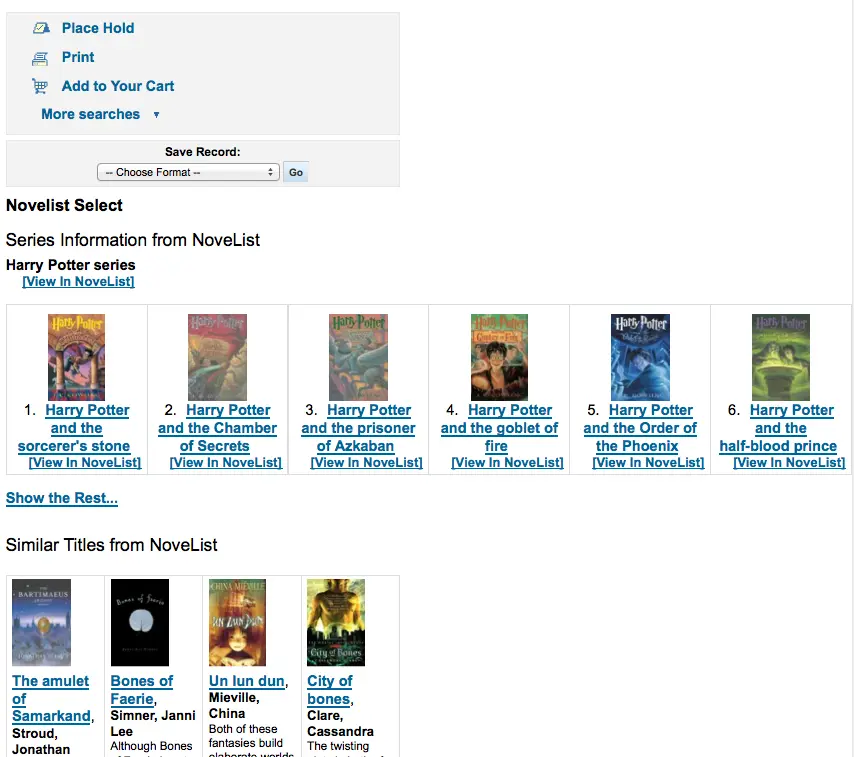
Novelist Select fournit un large contenu et, pour cette raison, vous avez quatre options pour définir où afficher ce contenu. La vue par défaut est un onglet du tableau des exemplaires.
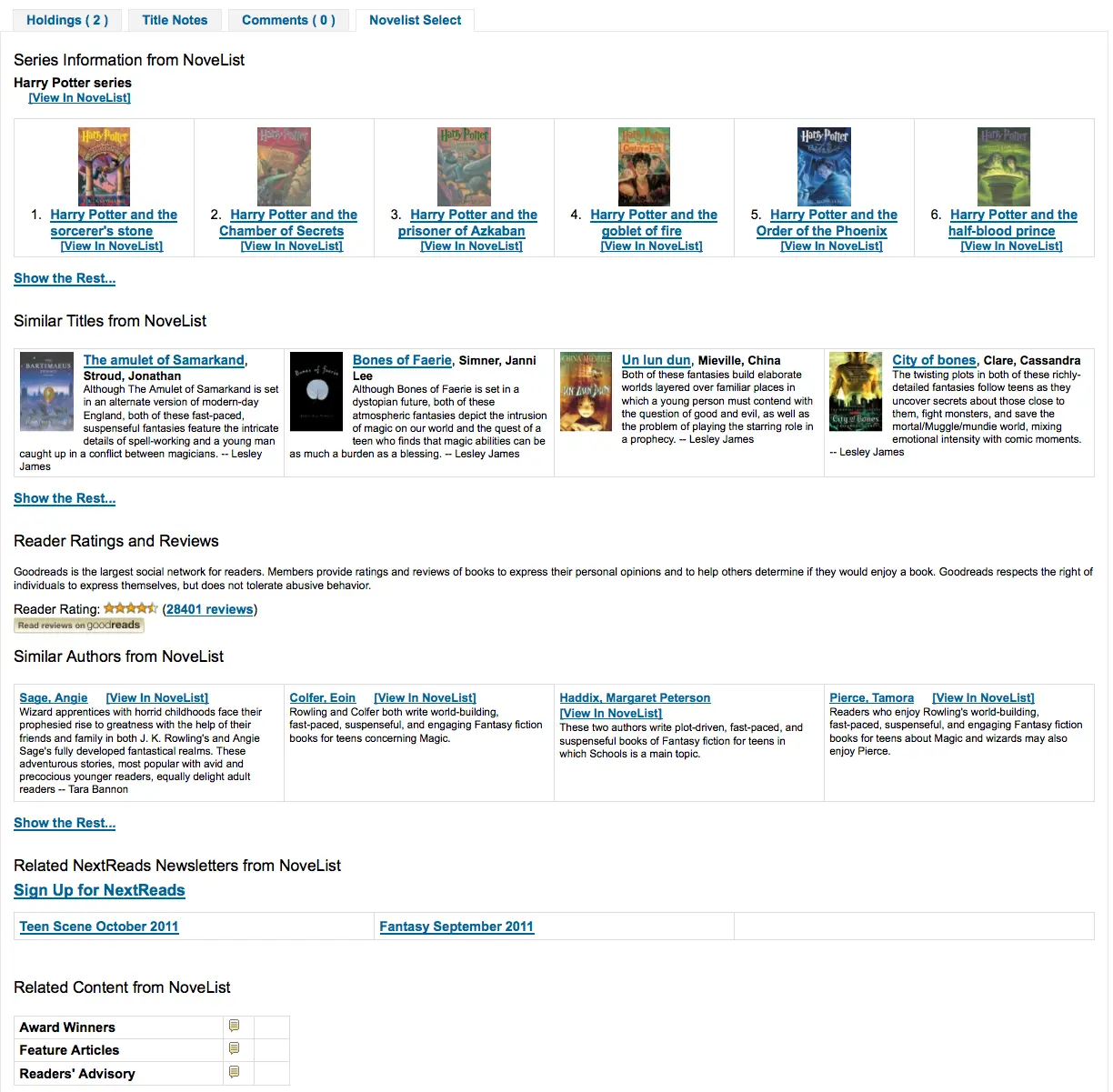
Le contenu reste le même si vous choisissez de l’afficher au-dessus ou en dessous du tableau des exemplaires. S’il est affiché dans la colonne de droite de la page, ce sera le même contenu mais il s’affichera un peu différemment car l’espace y est limité.
Open Library
OpenLibraryCovers
Action : ___ les images de couverture d’Open Library à l’OPAC sur les pages de résultat et d’affichage détaillé.
Valeurs :
Ajouter
Ne pas ajouter
Par défaut : Ne pas ajouter
Description :
Ce paramétrage contrôle l’affichage des couvertures de la base de données gratuite Open Library, via l’API Open Library. Veuillez noter que pour utiliser cette fonctionnalité, tous les autres services de fourniture de couvertures doivent être désactivés.
OpenLibrarySearch
Action : ___ à l’OPAC, les résultats de recherche de Open Library.
Valeurs :
Ne pas afficher
Afficher

Par défaut : Ne pas afficher
Overdrive
OverDrive est un service payant. Vous devez d’abord contacter directement OverDrive pour vous informer des tarifs et des abonnements. Utiliser les préférences système ci-dessous intégrera à l’OPAC les résultats de recherche sur Overdrive.
En plus, vous pouvez utiliser OverDriveCirculation pour autoriser vos adhérents à gérer leurs prêts OverDrive à partir de leur compte à l’OPAC.
Une fois que votre bibliothèque a un abonnement, vous devrez demander à OverDrive :
l’identifiant Authname OverDrive de votre abonnement
l’ID client et le secret client de l’API OverDrive
ID OverDrive de la bibliothèque
l’id du site OverDrive
OPACOverDrive
Version
Cette fonctionnalité a été ajoutée à Koha dans sa version 24.11.
Action : ___ l’intégration OverDrive dans l’OPAC.
Valeurs :
Ne pas activer
Activer
Par défaut : Ne pas activer
Description :
Cette préférence système est l’interrupteur principal de l’intégration OverDrive dans l’OPAC.
Avant de configurer cette préférence système sur “Permettre”, ajoutez vos OverDriveAuthname, OverDriveLibraryID et OverDriveClientKey and OverDriveClientSecret.
OverDriveAuthname
Action : Authentifier avec l’identifiant Authname OverDrive ___ (sera utilisé comme identifiant de secours si l’identifiant de la bibliothèque n’est pas paramétré dans la table OverDrive des identifiants de la bibliothèque).
Description :
Si la bibliothèque n’a qu’un identifiant Authname OverDrive, il devrait être saisi dans cette préférence système.
Si la bibliothèque a de nombreux établissements avec des identifiants Authname spécifiques (par exemple, dans un réseau), ils devront naviguer dans le tableau OverDrive des identifiants Authname des bibliothèques pour allouer le bon identifiant à chacun d’entre eux.
OverDriveCirculation et OverDriveUsername et OverDrivePasswordRequired
Action : ___ aux utilisateurs d’accéder à leur historique OverDrive, et faire circuler des exemplaires. OverDrive utilise le ___ de l’utilisateur pour accéder à OverDrive. Un mot de passe est ___ à l’utilisateur pour accéder à OverDrive. Si vous permettez l’accès, vous devez disposer d’une connexion SIP enregistrée avec OverDrive pour l’authentification des utilisateurs via Koha.
Valeurs de OverDriveCirculation :
Ne pas activer
Activer
Valeurs de OverDriveUsername :
numéro de carte
nom de l’adhérent
Valeurs de OverDrivePasswordRequired :
N’est pas requis
Est requis
Par défaut : [Vide]
Description :
La préférence système OverDriveCirculation indique à Koha si les utilisateurs auront accès à leur historique de prêts Overdrive et seront capables de faire circuler les documents. OverDriveUsername et OverDrivePasswordRequired définissent comment les utilisateurs se connectent à OverDrive.
OverDriveClientKey et OverDriveClientSecret
Action : Inclure les informations sur la disponibilité d’Overdrive avec la clé client ___ et le code secret client ___
Par défaut : [Vide]
Description :
Les clients de OverDrive peuvent obtenir cette information en consultant le portail OverDrive Developer et en suivant les instructions qui s’y trouvent pour se présenter en tant que développeur API. Une fois cette donnée et le OverDriveLibraryID renseigné, vous verrez les résultats OverDrive s’afficher dans vos recherches à l’OPAC.
OverDriveLibraryID
Action : Afficher les exemplaires du catalogue OverDrive de la bibliothèque # ___
Par défaut : [Vide]
Description :
Les clients de OverDrive peuvent obtenir cette information en consultant le portail OverDrive Developer et en suivant les instructions qui s’y trouvent pour se présenter en tant que développeur API. Une fois cette donnée et les OverDriveClientKey et OverDriveClientSecret renseignés, vous verrez les résultats OverDrive s’afficher dans vos recherches à l’OPAC.
OverDriveWebsiteID
Action : Authentifier avec l’id du site web de l’OverDrive ___.
Par défaut : [Vide]
Description :
Ceci indiquera à Koha avec quel identifiant du site se connecter. Cette information et fournie par OverDrive.
Syndetics
Proquest Syndetics est un service payant. Contactez-les pour vous informer des tarifs et abonnements sur https://proquest.syndetics.com/.
Afficher le contenu amélioré fourni par les services de Proquest Syndetics nécessite la présence d’ISBN dans vos notices MARC.
SyndeticsAwards
Action : ___ les informations de Syndetics sur les récompenses décernées à un titre sur la page de détail de l’OPAC.
Valeurs :
Ne pas afficher
Afficher
Par défaut : Ne pas afficher
Description :
Si cette option est configurée sur « Afficher », Proquest Syndetics fournit à ses clients une liste de récompenses obtenues par tous ces titres. Une fois ce service activé, la bibliothèque peut afficher ces récompenses pour chacun des titres sur son site. Pour chaque livre ou document affiché suite à une recherche par les adhérents, la liste des récompenses pour ce titre sera affichée. Quand un adhérent clique sur une récompense, une information à son sujet est affichée en même temps que la liste des autres titres l’ayant obtenue. Si l’utilisateur clique sur un titre de cette liste, il verra les informations sur les exemplaires à proximité. Cette option est un abonnement à un service payant. Le SyndeticsClientCode doit être saisi et l’option SyndeticsEnabled doit être activée avant de pouvoir utiliser ce service.
SyndeticsClientCode
Action : Utiliser le code client ___ to access Syndetics.
Par défaut : [Vide]
Description :
Dès que la bibliothèque souscrit aux services de Proquest Syndetics, ces derniers fourniront à la bibliothèque un code d’accès. (Consultez le site de Proquest Syndetics sur https://proquest.syndetics.com/ pour plus d’informations.) C’est le code à saisir pour accéder aux services d’abonnement à Proquest Syndetics, qui sont payants. Cette valeur doit être saisie avant d’activer SyndeticsEditions. En cas de perte, erreur ou oubli de ce code, un nouveau peut être obtenu auprès de Proquest Synetics.
Note
Vous devrez obtenir votre code client directement auprès de Syndetics.
SyndeticsCoverImages et SyndeticsCoverImageSize
SyndeticsCoverImages Par défaut : Ne pas afficher
Valeur de SyndeticsCoverImageSize par défaut : moyenne
Action : ___ les images de couverture issues de Syndetics dans les résultats de recherche et dans les pages de détail dans l’OPAC et l’interface professionnelle dans une taille ___.
Valeurs de SyndeticsCoverImages :
Ne pas afficher
Afficher
Valeurs de SyndeticsCoverImageSize :
moyenne
large
Par défaut : [Vide]
Descriptions :
Quand elle est activée, SyndeticsCoverImages permet aux bibliothèques d’afficher à l’OPAC la collection d’images de couvertures de livres, vidéos, DVD et CD en couleur de Proquest Syndetics. Pour chaque livre ou document qui apparaît suite à une recherche, l’image de couverture sera affichée. Comme ces images de couverture sont disponibles en trois tailles, la taille optimale doit être sélectionnée en utilisant la préférence système SyndeticsCoverImageSize après que SyndeticsCoverImages soit activée. Les couvertures sont disponibles en deux tailles : moyenne (187 x 187 pixels) et large (400 x 400 pixels). Proquest Syndetics est un service d’abonnement payant. Le SyndeticsClientCode doit être saisi et l’option SyndeticsEnabled doit être activée avant de pouvoir utiliser ce service. Les autres préférences système de fourniture de couverture doivent être désactivées afin d’éviter toute interférence.
SyndeticsEditions
Action : ___ les informations relatives aux autres éditions d’un titre de Syndetics sur les pages de détail de l’OPAC
Valeurs :
Ne pas afficher
Afficher
Note
- Nécessite que OPACFRBRizeEditions soit paramétrées sur
“afficher”
Par défaut : Ne pas afficher
Description :
Quand elle est activée, cette option affiche des informations à propos d’autres éditions d’un titre de Proquest Syndetics sur la page de détails du document à l’OPAC. Ceci est un service d’abonnement payant. Le SyndeticsClientCode doit être saisi et l’option SyndeticsEnabled doit être activée avant de pouvoir utiliser ce service.
SyndeticsEnabled
Action : ___ les contenus de Syndetics.
Valeurs :
Ne pas utiliser
Utiliser
Par défaut : Ne pas utiliser
Description :
Quand cette option est activée, n’importe quelle option de Proquest Syndetics peut être utilisée.
Note
- Nécessite que vous saisissiez votre
SyndeticsClientCode avant que n’apparaissent ces contenus.
SyndeticsExcerpt
Action : ___ les extraits d’un titre de Syndetics sur les pages de détail de l’OPAC.
Valeurs :
Ne pas afficher
Afficher
Par défaut : Ne pas afficher
Description :
Cette préférence système permet à Proquest Syndetics d’afficher des extraits qui lui sont fournis par des éditeurs sélectionnés. Les extraits sont disponibles pour des nouveautés très bien notées, en fiction comme en documentaire. Les extraits comprennent des poèmes, essais, recettes, avant-propos et préfaces.
SyndeticsReviews
Action : ___ les critiques de Syndetics sur les pages de détail de l’OPAC.
Valeurs :
Ne pas afficher
Afficher
Par défaut : Ne pas afficher
Description :
Proquest Syndetics Reviews est une compilation de critiques de livres disponibles parmi divers journaux et revues. La page des critiques affiche les jaquettes en couleurs des titres critiqués jumelées aux noms des journaux et revues d’où proviennent les critiques. Cliquer sur une icône ouvre une fenêtre où apparaissent le titre du livre, le nom de l’auteur, l’image de couverture du livre et l’avis du critique du livre.
SyndeticsSeries
Action : ___ les informations sur les autres livres d’une collection de Syndetics, sur les pages de détail à l’OPAC.
Valeurs :
Ne pas afficher
Afficher
Par défaut : Ne pas afficher
Description :
Chaque titre de fiction d’une série est lié à la notice de la série complète. La notice affiche chaque titre dans l’ordre de lecture ainsi que l’ordre de publication s’il est différent. Les titres de séries alternatives sont aussi affichés.
SyndeticsSummary
Action : ___ le résumé d’un titre de Syndetics sur les pages de détail à l’OPAC.
Valeurs :
Ne pas afficher
Afficher
Par défaut : Ne pas afficher
Description :
Fournissant plus de 5,6 millions de résumés et commentaires tirés des jaquettes des livres, provenant des éditeurs ou des avis indépendants sur Book News, Inc. Couvrant fiction et documentaire, cette option de résumés fournit des avis sur les livres publics ou scolaires.
SyndeticsTOC
Action : ___ le sommaire d’un titre de Syndetics sur les pages de détail de l’OPAC.
Valeurs :
Ne pas afficher
Afficher
Par défaut : Ne pas afficher
Description :
Cette préférence système permet aux bibliothécaires et aux adhérents de visualiser le sommaire d’une large diversité de publications, des livres de développement personnel aux actes de colloques . L’accès à des informations précises est l’objectif principal de cette option, permettant d’amener les adhérents vers leurs sections préférées du livre. Des dispositions particulières avec des services choisis permettent d’obtenir le sommaire de nouvelles publications chaque année.
Mots-clefs
TagsInputOnDetail
Action : ___ aux adhérents de saisir leurs mots-clefs sur la page de détail de l’OPAC.
Valeurs :
Autoriser

Ne pas autoriser
Par défaut : Autoriser
TagsInputOnList
Action : ___ aux adhérents de saisir leurs mots-clefs sur la page de résultat de l’OPAC.
Valeurs :
Autoriser
Ne pas autoriser
Par défaut : Ne pas autoriser
Description :
Cette préférence système permet de définir si les adhérents peuvent ou non ajouter leurs propres mots-clefs aux titres à partir de résultats de recherche, listes ou panier.
Si elle est paramétrée sur “Permettre”, un bouton d’ajout de mot-clef apparaîtra sous chaque résultat de recherche et sous chaque titre dans une liste ou un panier.
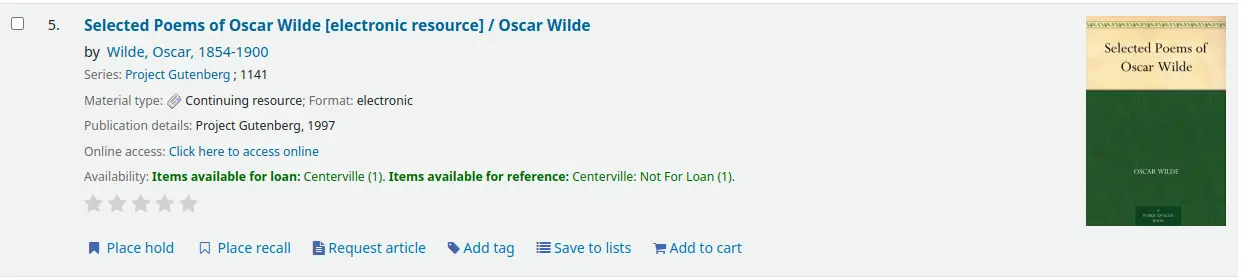
Les adhérents pourront aussi sélectionner plusieurs titres et leurs ajouter des mots-clefs.